Release Notes dentalcam 9.2
 Service Pack 2 (9.2.2) – October 29, 2026
-
The management of archive folders, job naming conventions, and resource control have been optimized. As a result, individual calculations start more reliably, resource allocation is more precise, and logging has been standardized.
-
It was possible for a calculation to hang without the user being notified. This behavior has been corrected.
-
In rare cases, the tool would collide with the edge of the drill hole when manufacturing tight holes. This behavior has been corrected.
-
E5: If you used the Anterior Region editing function together with a background image of a used blank, the image could become misaligned and only be partially displayed.
Service Pack 1 (9.2.1) – October 10, 2026
-
In the Position/Alignment editing function, the arrows used to align objects were sometimes unselectable. This behavior has been corrected.
-
After rotating objects 180°, the mouse movement did not correspond to the expected direction of rotation. This behavior has been corrected.
-
An error could occur when importing dentalcam 8 data with the Voco Grandio material. This behavior has been corrected.
Initial release of this version: October 5, 2026
- Highlights
- New and improved features
- Bug Fixes
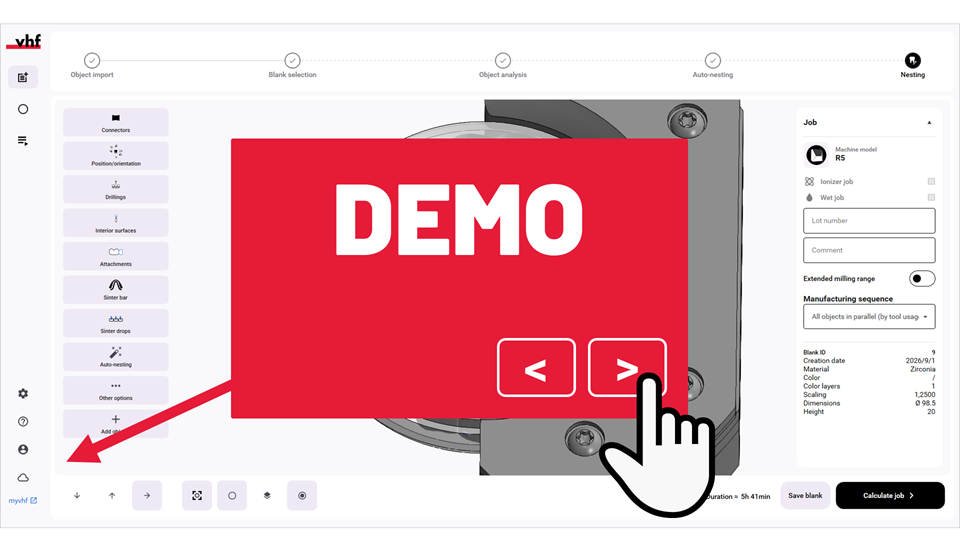
Experience our interactive highlights demo
Learn about all major changes in dentalcam 9.2 in 5 – 10 minutes.
Tip: You can click inside the text boxes to proceed to the next step; you don't need to click the > icon.
Upgrade to dentalcam 9 now available
Owners of older dentalcam versions can now update to version 9. Contact customer service.
Recommendation: To learn about all the new features in dentalcam 9.1, see Release Notes dentalcam 9.1
Your benefit
-
Take advantage of the improvements in dentalcam & dentalcnc 9 and myvhf.
More information
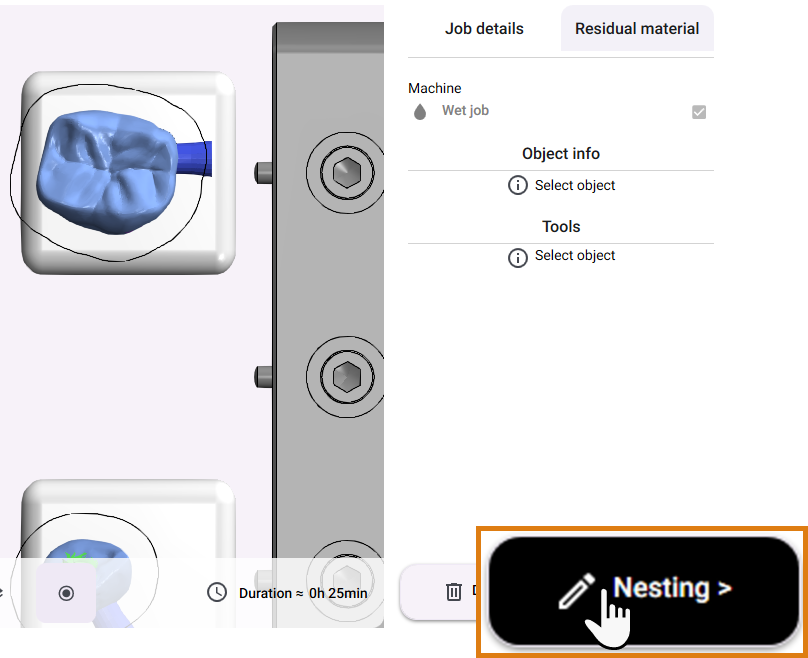
Restructured nesting view
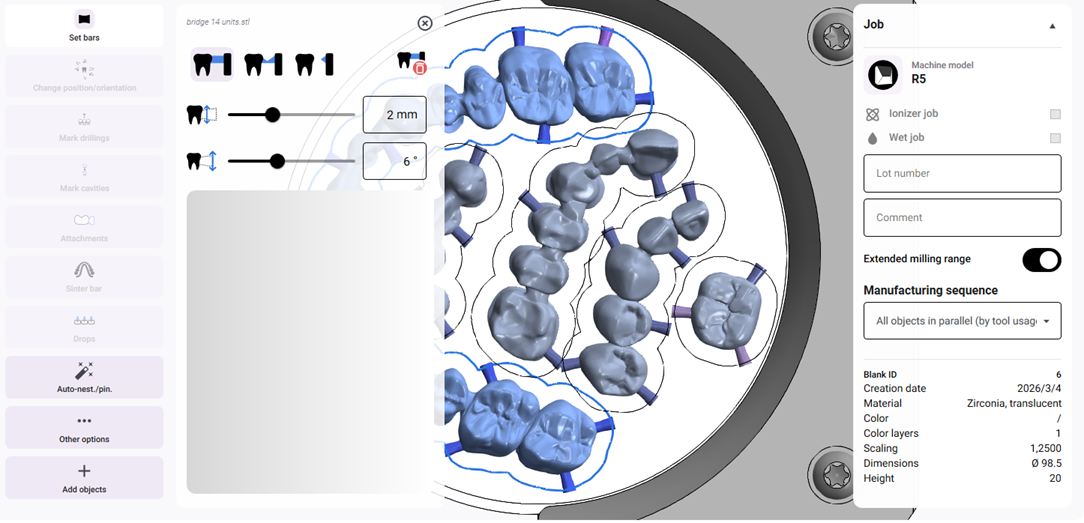
The nesting view has been restructured and presented in a markedly clearer way.
-
Icons instead of drop-down menus Access the editing functions directly via icons instead of having to expand and collapse menus.
-
A separate column for editing functions Specify the values for the individual editing function in a separate column.
-
A separate column for job details You will now find the job details in a separate column, which you can hide for greater clarity.
-
Delete connectors at any time You can now delete connectors with a right-click without opening the connector editing function.
-
Rotating objects via the keyboard You can now rotate objects via the arrow keys while holding down the Control key:
-
Left/right arrow: Rotate by 10°
-
Up/down arrow: Rotate 90°
-
-
Importing objects retrospectively You can now import objects directly into a blank without using the main workflow.
Your benefit
-
Direct access to all relevant functions.
-
Clearly structured individual elements in the nesting view.
More information
Parallel calculation of jobs now possible
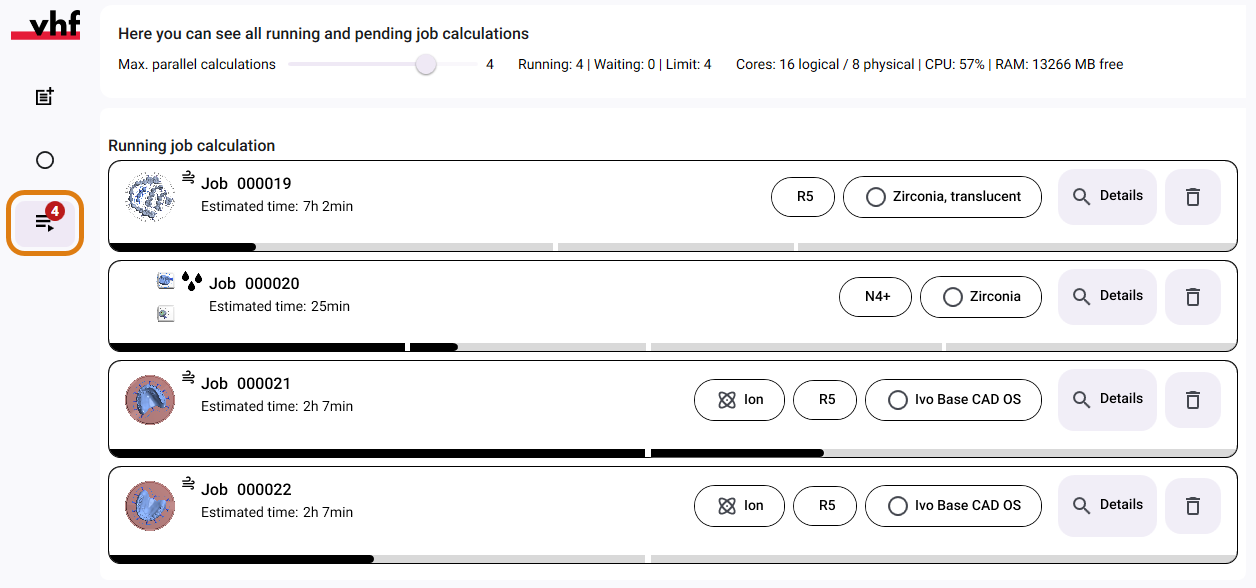
dentalcam now calculates up to 5 jobs at the same time. To do this, simply start the calculation after completion of each blank. dentalcam takes your computer’s capacity into account to make optimal use of it without overloading its capacity.
-
You can manually limit the maximum number of parallel calculations.
-
The program displays a warning message if an attempt to close dentalcam is made during a job calculation.
Your benefit
-
Time savings through parallel calculations.
More information
Clearer designations for quality levels
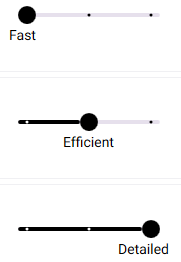
The manufacturing quality levels are now named more precisely and can be adjusted via a slider when importing objects. The display with stars has been eliminated.
Recommendation: The Efficient quality level is usually more than sufficient. This allows you to achieve very good quality in relatively short manufacturing times.
|
Previous display |
Previous designation |
New designation |
Slider position |
|---|---|---|---|
|
|
Fast |
Fast |
Left |
|
|
Standard |
Efficient |
Middle |
|
|
Optimal |
Detailed |
Right |
Your benefit
-
Select a manufacturing strategy based on actual need: Save on manufacturing time where possible while ensuring a very high level of detail where necessary.
More information
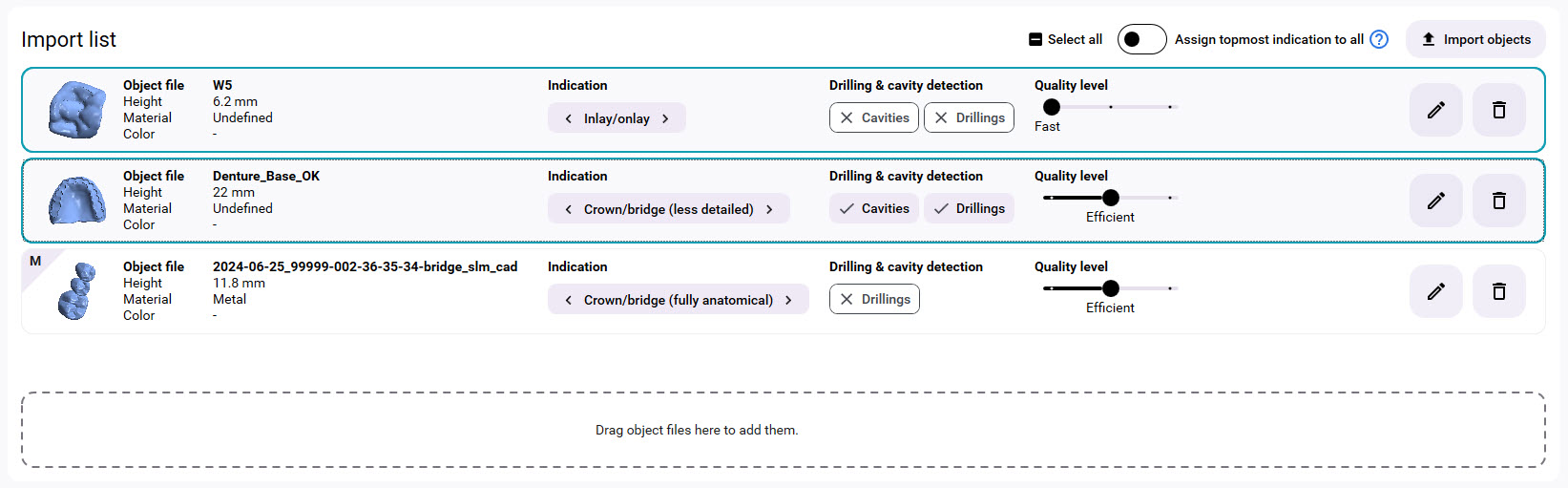
Improvements when importing objects
The Object import view has been optimized for faster selection:
- Option to add object files via drag-and-drop
-
More clearly structured grouping of import parameters
-
Arrows in the buttons for more convenient indication toggling
-
Labeling an import using metadata, including a list of the data imported that way via tooltip
-
Option to assign the topmost indication to all other objects
Your benefit
-
Accelerated and more convenient importing of objects.
myvhf Sign in and elimination of manual machine management
dentalcam is now even more closely integrated into the vhf digital solutions. Now, when you start the program, you sign in with your vhfid.
This allows dentalcam to identify all of your machines running on a dentalcam 9 license via your company profile. The need to add machines manually has been eliminated.
You can still activate individual machine models manually.
Your benefit
-
Automated machine management.
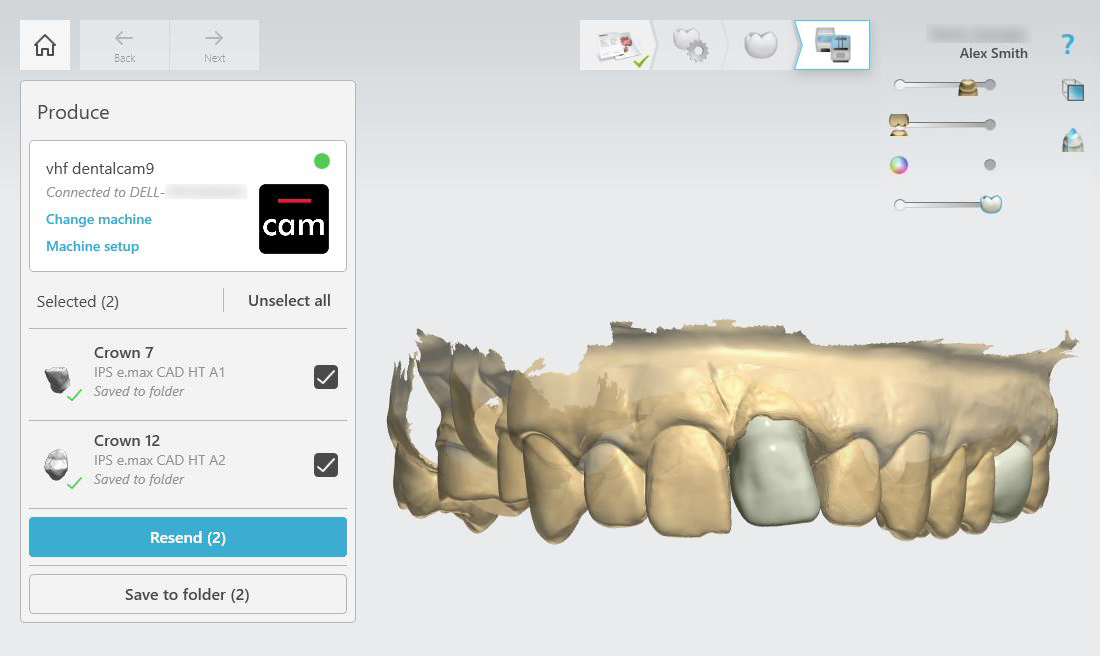
Added CAD integrations (including exocad ChairsideCAD and 3Shape Produce)
The following CAD applications can send objects and, in some cases, even metadata directly to dentalcam:
-
TRIOS Design Studio (via the 3Shape Produce server)
-
Medit
-
Shining 3D
-
Circle One
-
Dental Twin
-
iTero
exocad ChairsideCAD has advanced CAD/CAM integration that also allows you to perform nesting within the CAD application.
Your benefit
- Automated import of objects from CAD applications.
- exocad ChairsideCAD allows all CAM steps to be performed directly within the CAD application.
More information
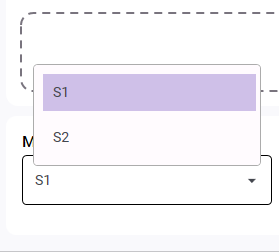
S1/S2 and Zenotec Select machines are now supported
With dentalcam 9, you can create and calculate blanks for S1/S2 and Zenotec Select machines.
The requirement is a valid dentalcam 9 license for each machine.
Manufacturing requires dentalcnc 9.1.
The RFID reader can no longer be used on Zenotec Select machines.
Your benefit
-
Your S1/S2 and Zenotec Select machines also let you benefit from the improvements in dentalcam & dentalcnc 9 and in myvhf.
More information
-
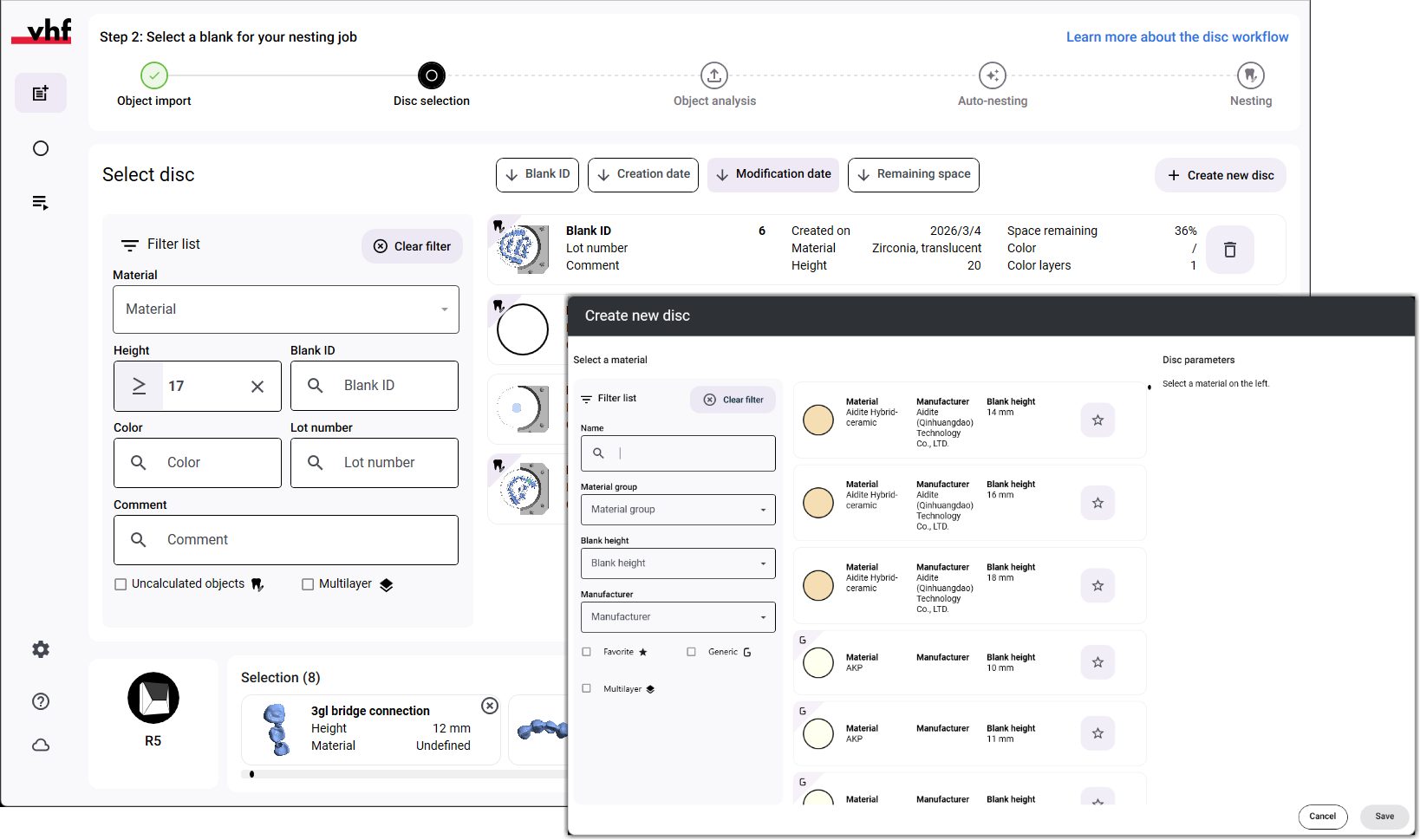
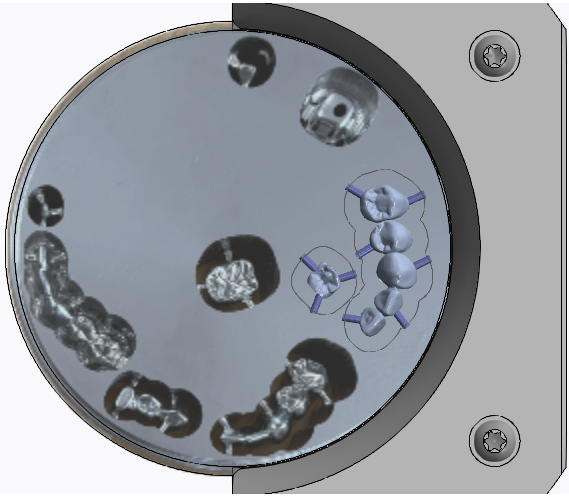
We have developed the following function for used discs from your Ivoclar CAM software: Images of used discs that can be used as nesting aids
Images of used discs that can be used as nesting aids
If a used disc is not (or no longer) in the blank archive, you can use an image of the disc as a nesting aid. dentalcam overlays the image in the nesting view with the virtual disc, allowing you to easily position new objects within the existing material.
Your benefit
-
Convenient and process-reliable positioning of objects in disc not available in the archive.
-
Import the image when creating a disc: Creating or loading blanks during the main workflow
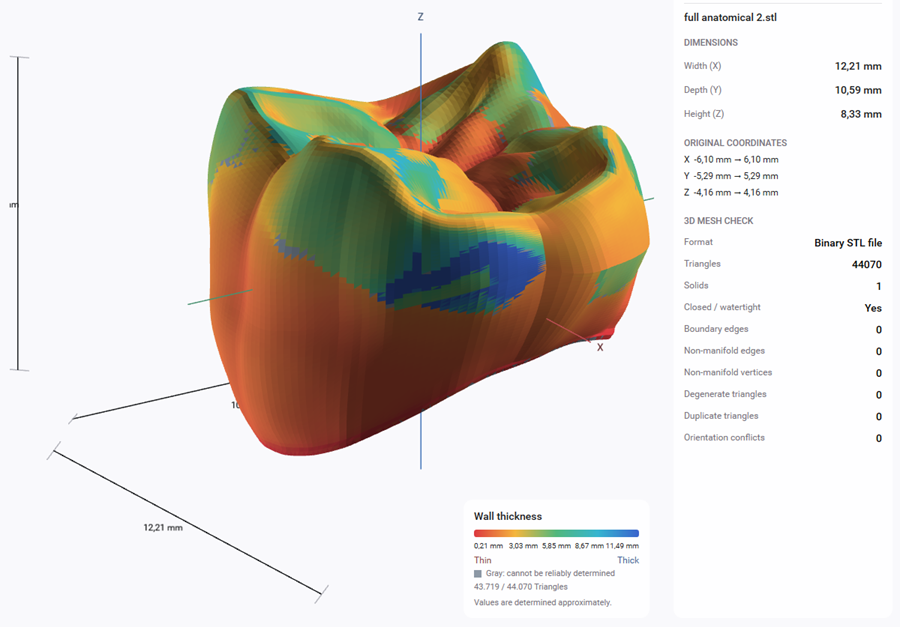
Integrated object viewer for checking 3D models
The integrated object viewer allows you to check that object files are correct prior to import.
Excerpt of available functions:
-
Check wall thicknesses
-
Measure distances
-
Display cross section
-
Check that a 3D mesh is free from errors (e.g., manifoldness)
You can add fault-free objects directly to the import list.
Your benefit
-
Conveniently check objects directly in dentalcam without using an external program.
Improved import of dentalcam 8 data
The import function for data from dentalcam 8 has been improved:
- Now, not only you can import discs from your archive, but also settings for individual material groups, such as optional tools, fit adjustments, etc.
-
Prior to import, you will get a comparison of the required and available storage space. You cannot start the process unless there is enough storage space available.
-
dentalcam displays an animation to indicate that the import is running in the background.
Your benefit
-
Process-reliable import of your discs and material settings.
Expanded calculation window, including the generation of job PDFs
The window for starting job calculations now displays a numbered list of all object files used alongside an image of the nested blank with labels of the objects and their corresponding numbers.
You can also save the data in the window as a PDF file.
Your benefit
-
Extended job details can be saved, for example, for billing purposes.
Non-diamond-coated tools for composites can be selected
Until now, only diamond-coated tools were supported for processing composite materials in dentalcam 9. Now, you can use non-diamond-coated tools instead:
-
Settings > Material settings > Composites > Use non-diamond-coated tools
Your benefit
-
Use non-diamond-coated tools from vhf if you do not need the extended tool life offered by diamond-coated tools.
Improved nesting optimization
When objects are too high for the selected disc, dentalcam will optimize nesting. Until now, dentalcam had attempted to optimize the object’s position by adjusting the blank holder so that manufacturing was possible nevertheless.
This approach had the following limitations:
-
More material could be consumed.
-
The corrections options were limited to the rotational angle of the corresponding axis.
That is why we improved nesting optimization: Now, dentalcam attempts to position objects optimally on the disc by rotating the object data. Manual re-correction is still possible via the Change position/alignment editing function.
Your benefit
-
Greater process reliability and lower material consumption.
Finer definition of the anterior tooth region possible
When using a special strategy to perform anterior tooth manufacturing on E5 machines, you can now define the strategy’s area of application even more precisely. For this purpose, dentalcam provides you with the corresponding control elements in an additional step of the Anterior tooth region editing function.
Your benefit
-
An even greater reduction in residual material through targeted marking of the anterior tooth region.
Improved support when importing prefabricated abutment blanks
Prefabricated abutment blanks must be made of the same material per job and exist in the dentalcam database. dentalcam now supports you in this as follows:
-
Prefabricated abutment blanks with a designated material dentalcam prevents the import of abutment blanks made of different materials when an abutment blank is selected from the import list. The program displays a corresponding note with the respective entry.
-
Prefabricated abutment blanks with a selection of materials dentalcam will indicate that the combination is not possible if you select different materials.
-
Unknown abutment blanks If an abutment blank does not exist in the database, dentalcam marks it with a corresponding note in the import list.
Your benefit
-
More process-reliable import of prefabricated abutment blanks
Connectors now also remain connected to the object along the Z-axis
It had been possible to separate a connector from the object by moving it along the Z-axis.
-
dentalcam now locks the areas above and below the objects to prevent unintentional movement.
-
When moving an object in the preview area with the mouse or a touch gesture, dentalcam will also display a red cross if you cannot move the connector any further in that direction.
Your benefit
-
Protection against incorrect connector positioning.
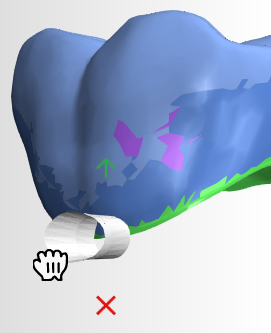
Improved display of blank history
In the blank detail view, the following improvements have been made in the Blank History section (formerly: Objects):
-
dentalcam displays a preview image for all jobs that were calculated based on a blank disc. When you hover your mouse over a preview image, the program displays an enlarged version.
-
When selecting a job, the available space is now always displayed.
Your benefit
-
A more targeted selection of older stages.
Preview images for dentalcnc have been improved for certain block types
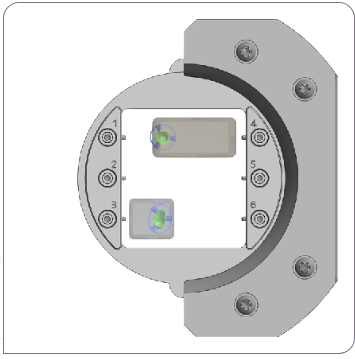
Some multi-layer blocks are rotated 180° and mounted in the blank holder or block adapter. In these cases, the underside of the object points in the direction of the upper side of the blank holder or block adapter.
Until now, dentalcam had therefore always exported the preview image for dentalcnc in such a way that the back of the blank holder or block adapter was visible. This deviated from the standard display and could result in the blocks being mounted in the wrong positions.
dentalcam now always exports preview images in such a way that the blank holder or block adapter is visible from above.
Your benefit
-
Protection against wrong alignment of blocks, thereby preventing undesirable manufacturing results.
Improved preview image in dentalcnc
Discs can now be filtered by exactly one height
Until now, you could only select the operators ≥ (greater than or equal to) and ≤ (less than or equal to) for the filter criterion Height. However, this did not allow you to limit the displayed discs to exactly 1 size. Therefore, the operator = (equal to) has now been added as a filter criterion.
Your benefit
-
More precise filtering of the desired disc height.
General
-
When downloading a dentalcam version using the update feature, the program might crash. This behavior has been corrected.
Blank creation and management
-
A large blank archive could significantly slow down dentalcam. This behavior has been corrected.
-
When dentalcam was calculating a job in the background, delays would occur in the Blank details view when switching between jobs. This behavior has been corrected.
-
When filtering blanks, the filter criterion machine model did not always return the intended results. This behavior has been corrected.
-
Not all indications can be made from blocks. When creating blocks for 5-axis machines, however, dentalcam would not indicate any incompatible indications. This behavior has been corrected.
Object import
-
When automatically importing objects using metadata from a folder shared among multiple computers, error messages could occur. The computers were mutually blocking each other’s access to the files. This behavior has been corrected. dentalcam now ensures that at least 1 computer imports all objects correctly.
Recommendation: Do not use a shared folder for automatic object import.
-
When importing metadata, not all metadata were always imported. In addition, the setting regarding whether to use metadata was not always applied correctly. This behavior has been corrected.
Nesting
-
When editing sinter bars, the step back function would cause the control elements to display the previous value, although the geometry of the sinter bar remained unchanged. This behavior has been corrected.
-
If you closed the editing function for marking drill holes during an intermediate step and then confirmed the first step, dentalcam would prompt you to follow the correct sequence of steps. This behavior has been corrected.
-
After loading a blank via the blank archive, objects were no longer highlighted when selected. This behavior has been corrected.
-
With blocks, dentalcam would not warn that the object spacing was too narrow until the objects were already intersecting. The tool space was not taken into account. This behavior has been corrected.
-
After a crash, it would sometimes become impossible to open the most recently loaded blank file. This behavior has been corrected.
-
When the Auto-connector function is activated, the following unwanted behavior could occur: If connectors had to be removed from an object for an editing function, the connectors for all objects in the blank were subsequently reset. Any connectors that may have been set or adjusted manually were deleted in the process. This behavior has been corrected. dentalcam now only resets connectors for objects from which they have been removed.
-
When connectors were placed partially above or below objects, they were not always continuously connected to the object. The resulting gaps could cause the respective connector to break during manufacturing. This behavior has been corrected. dentalcam now always calculates the connector geometry seamlessly up to the respective object.
-
The diameter of the drill hole markings was limited to 8 mm, which was insufficient for some abutments. This behavior has been corrected. The maximum value is now 10 mm.
Job calculation
-
When you shared the folder where dentalcam stores the blank discs with other computers on the network, the program would display an error message on them when starting a job calculation. This behavior has been corrected.
-
Uneven surfaces would sometimes occur on prefabricated abutments. This behavior has been corrected.
-
During manufacturing in the anterior tooth region, a faulty strategy could sometimes cause the tool to collide with the object. This behavior has been corrected.
-
M200 tools could collide with the edge of the tool space. This behavior has been corrected.
-
When manufacturing occlusal drill holes with 2-mm tools, an undesirable step could sometimes form on the object. This behavior has been corrected.


