Adding or removing machines

For OEM and license management, all machines with a dentalcam license must be stored in the program. Only then can dentalcam it properly manage update notifications, OEM profiles, and information about manufacturing restrictions.
If you do not have a license for a machine, dentalcam runs in demo mode for the machine. You can create jobs for this machine, but you cannot manufacture them.
Adding machines
Requirement
-
You have a dentalcam 9 license for at least 1 machine
-
Each installation of dentalcam have 1 OEM profile assigned to it. It is not possible to use multiple OEM profiles within a single installation.
For information on OEM profiles, see OEM profiles.
-
If you are starting dentalcam for the first time the program automatically displays the Add machine serial numbers window.
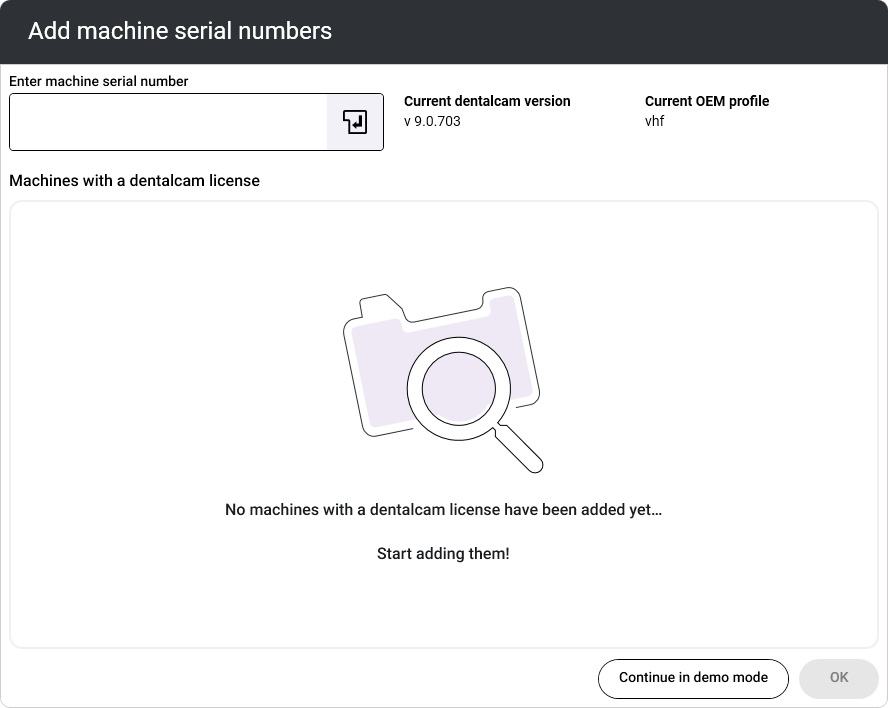
Otherwise, open the window manually:
-
Open the dentalcam settings with the following icon in thesystem menu:

-
In the Machines with a dentalcam license section, select the + button or Edit machines.
-
The Add machine serial numbers window opens.
Open the Machines and Updates tab.
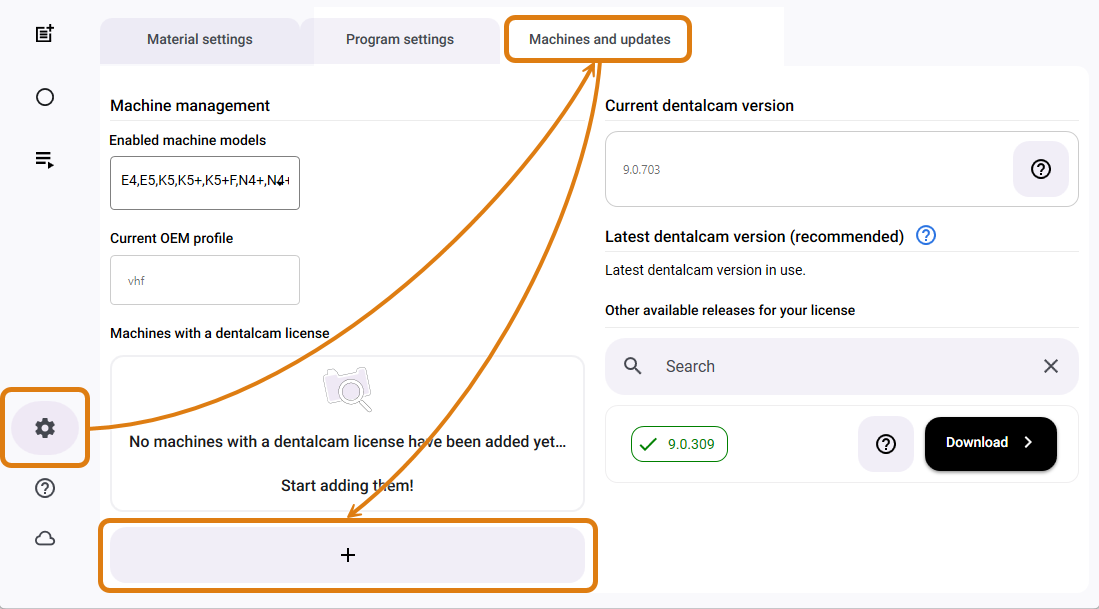
-
-
In the Enter machine serial number input field, the serial number of a machine with a dentalcam license and press Enter.
-
Repeat the last step for all machines with a dentalcamlicense.
-
Click the OK button to save your changes.
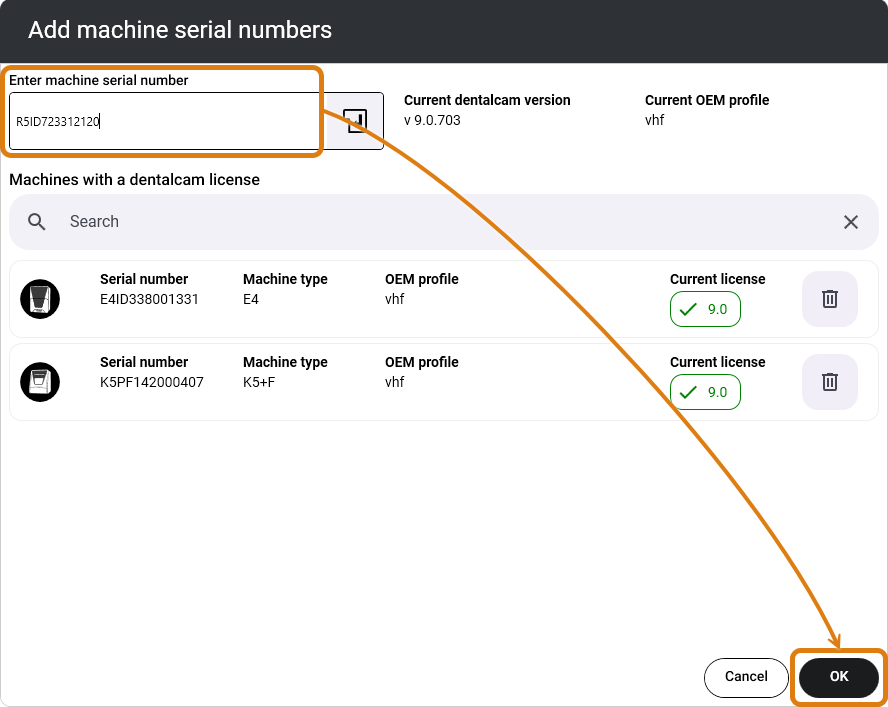
- dentalcam expands the following information on the Machines and updates tab based on the added serial numbers:
-
The machines in the Activated machine models drop-down menu.
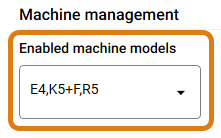
You can only create blanks for activated machine models. If necessary, manually activate the desired machine types.
Please note: dentalcnc does not manufacture jobs for machines without a dentalcam license.
-
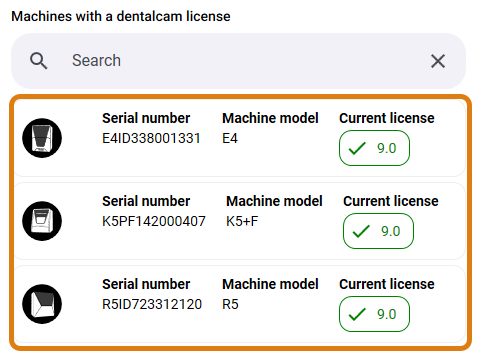
See the list in the Machines with a dentalcam license section.
Removing machines
-
Open the dentalcam settings with the following icon in thesystem menu:
-
In the Machines with a dentalcam license section, select the Edit machines button.
-
The Add machine serial numbers window opens.
-
Select the following icon next to the desired entry:

Open the Machines and Updates tab.


