Release Notes dentalcam 9.1
- Highlights
- New and improved features
Initial release of this version: 2026-06-29
Completely redesigned user interface
dentalcam has been completely redesigned – this is also reflected in the User interface.
-
The new interface is clean and streamlined, enabling an improved main workflow.
-
It uses user-friendly features such as drag-and-drop and familiar icons.
Your benefit
-
Excellent user guidance for quick results.
-
Intuitive operation combined with a wide range of features.
More information
New main workflow: Object import occurs before blank creation
As of this version, you first import the objects and then create the blank. Depending on the form of the material – disc, block, or prefabricated abutment – dentalcam displays various dialog windows to facilitate the efficient placement of blanks.
If you prefer to create your discs before importing objects, you can still do so. Use the blank archive for this: Creating discs via the blank archive
Your benefit
-
A practical sequence of the individual workflow steps.
-
A user interface that adapts to your work and provides the tools you need.
More information
Faster object import using metadata from your CAD application
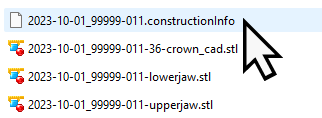
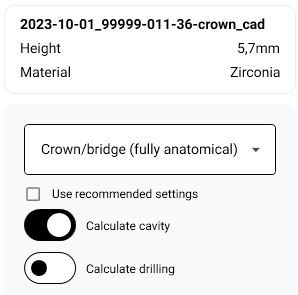
dentalcam reads metadata from your CAD application when importing objects and uses this data to analyze the objects.
Your benefit
-
Significant acceleration of the import process by prefilling parameters such as the indication, number of drill holes, and cavities.
-
Import of 3D geometry data, such as the preparation line, for more accurate job calculations.
You can activate or deactivate this function in the settings.
Default setting: activated.
You select the metadata files during the object import:
More information
New auto-nesting features for automatically placing bars and arranging objects
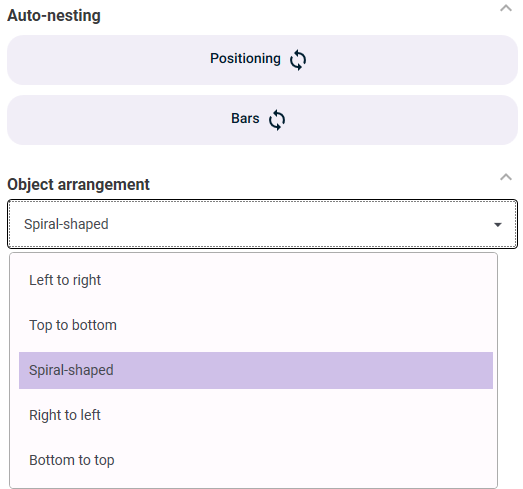
dentalcam can now automatically place bars and position objects in the blank. The Auto bars and Auto positioning functions can be triggered either automatically when importing objects or manually in the nesting view.
If the placement of bars is triggered automatically, the number and positioning of the bars are dentalcam always adjusted accordingly during nesting.
Your benefit
-
Significant time savings in nesting by eliminating routine tasks.
-
The program settings allow you to configure the automatic triggering of the auto-nesting features: Program settings of dentalcam
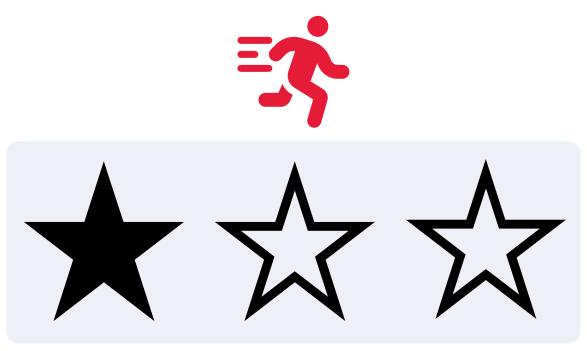
Manufacturing at the "Fast" quality level is now up to 20 percent faster
By adjusting the manufacturing strategies, objects can now be manufactured up to 20% faster when calculated using the Fast quality setting.
The actual time savings depend on the object and the manufacturing parameters and apply to the following materials:
-
Zirconia blocks and discs
-
Glass ceramic blocks
-
Hybrid ceramic blocks
-
PMMA discs
Your benefit
-
Faster manufacturing results with quality appropriate for this grade.
More information
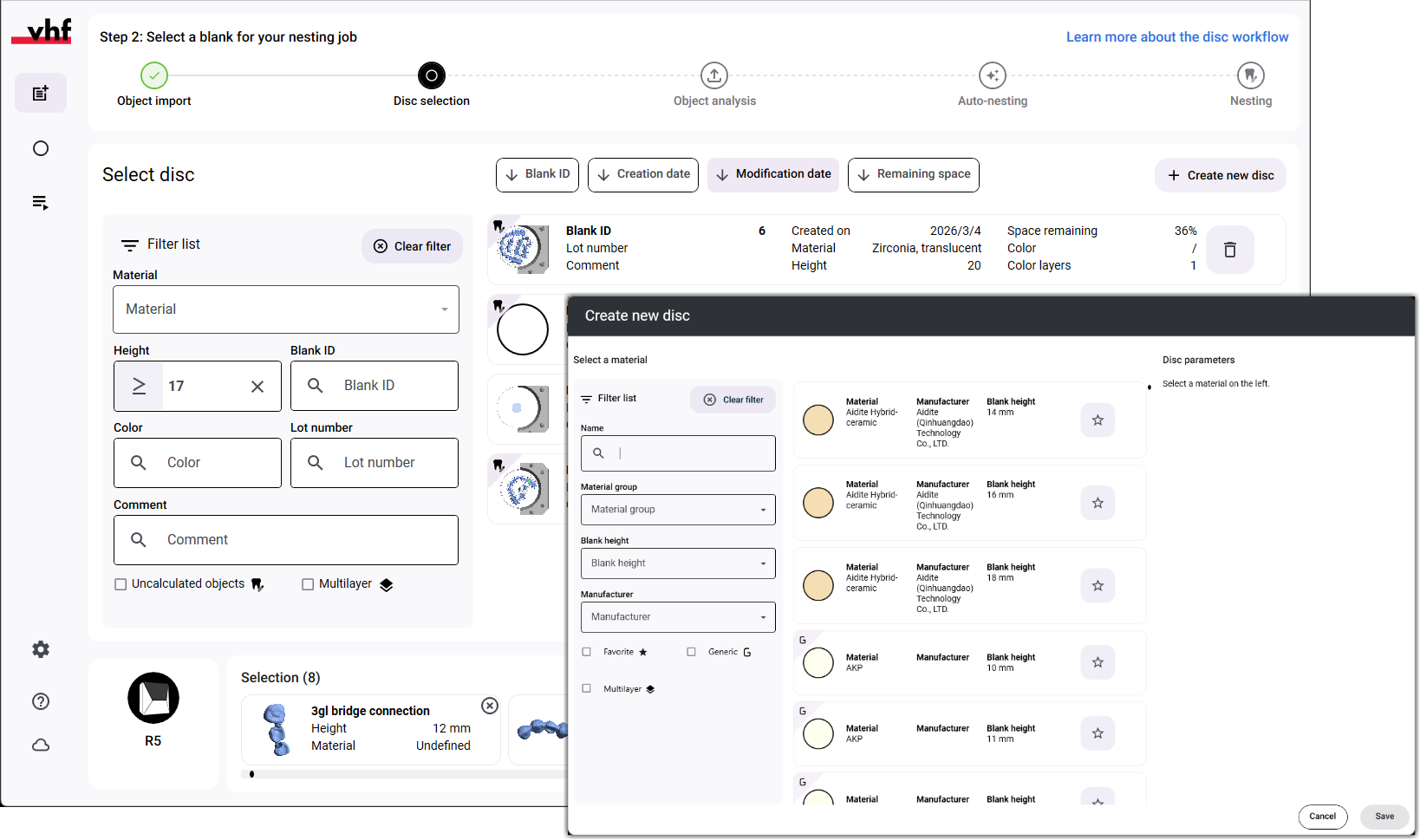
Integrated material list with search and filter options
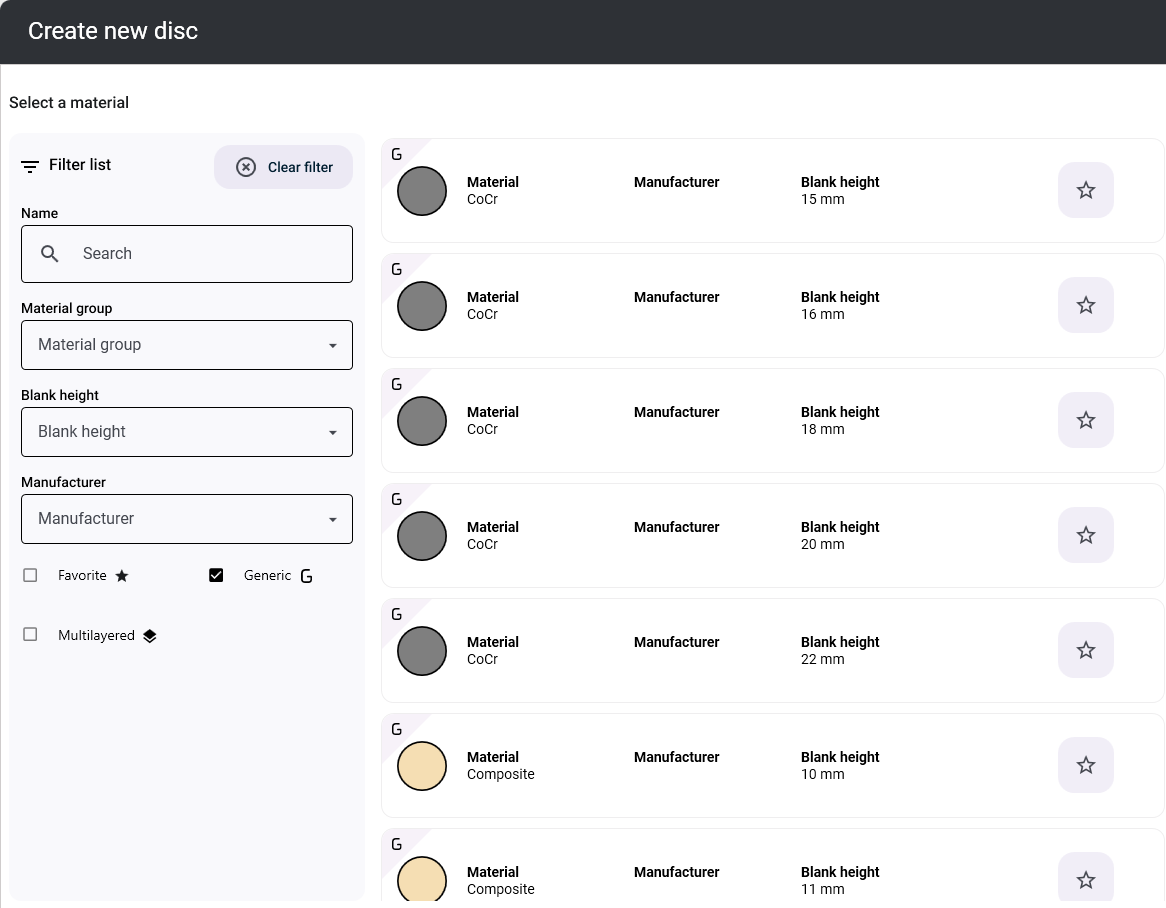
We have integrated the complete material list of dentalcam into the program and made it possible to search and filter it.
Your options:
-
Search for the names of branded materials.
-
Filter by material group, height, and manufacturer.
-
Limit your selection to generic or multi-layer materials.
-
Mark frequently used materials as favorites and filter the list by them with a single click. This feature replaces the customizable material list from dentalcam 7 and 8.
Your benefit
-
Access the complete material database directly in dentalcam without having to rely on external sources.
-
Quickly find the materials you need for each job.
-
You use the material list during the main workflow of dentalcam: Creating or loading blanks during the main workflow
Blank archive with filtering and sorting options
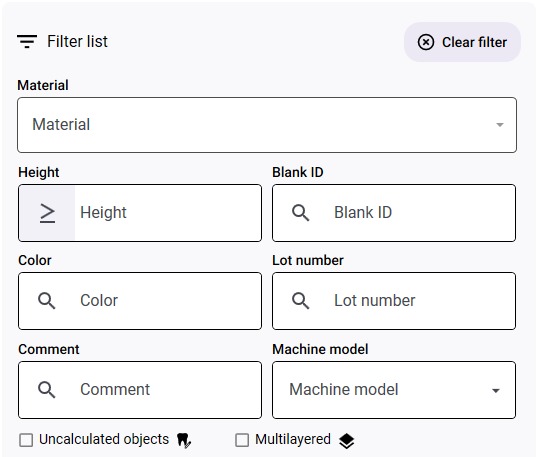
The blank archive now offers extensive filtering and sorting options.
Another new feature is the display of remaining space, as well as the option to show only blanks containing objects that have not yet been calculated.
Your benefit
-
Find your saved blank discs faster.
-
Search specifically for blanks with sufficient space or objects that still need to be calculated.


Multiple block types are allowed per job
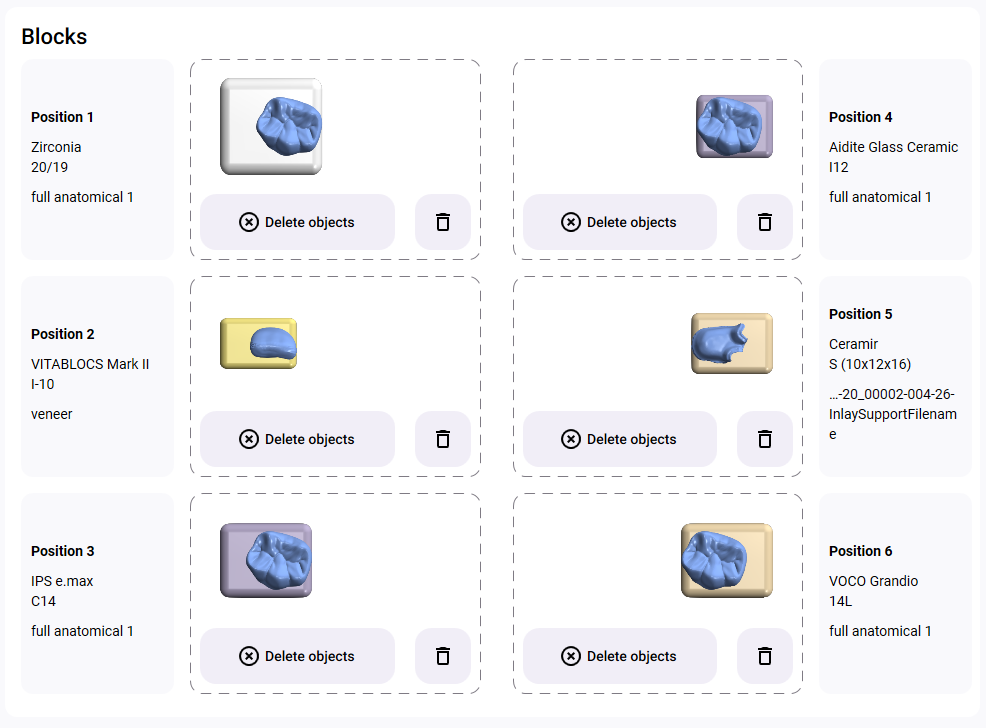
Until now, you could only use blocks made of the same material and with identical dimensions for each job. Starting at dentalcam 9, you can freely combine block types, provided there is enough space in the blank holder or block adapter.
Your benefit
-
Mill or grind different types of blocks in a single job, instead of preparing multiple jobs.
-
Creating blocks is part of the main workflow of dentalcam: Creating or loading blanks during the main workflow
Restructured configuration of materials and optional tools
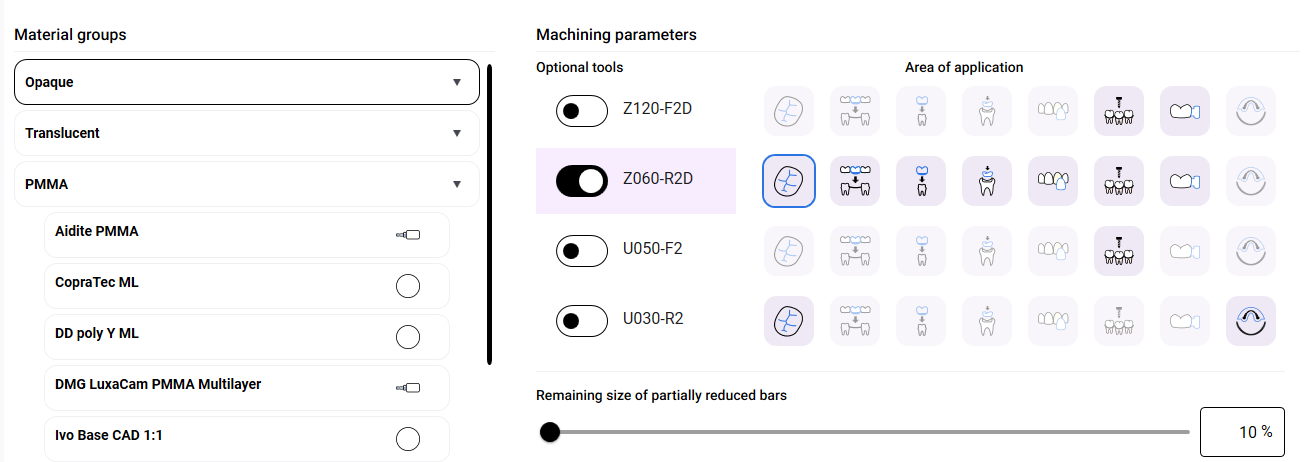
The material-specific definition of manufacturing parameters has a decisive impact on the quality of the manufactured objects. In particular, the use of additional tools can significantly improve quality.
dentalcam now displays the relevant settings separately by material group and individual material, each with its own set of options.
Your benefit
-
Clear and precise definition of manufacturing parameters for entire material groups or individual materials.
More information
Optional tools can now be configured on a per-object basis during nesting
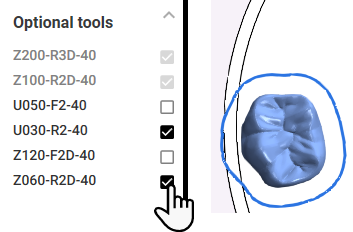
Until now, you could only enable optional tools on a per-material basis in the settings. From now on, the nesting view lets you choose which optional tools dentalcam to use for each object.
The optional tools enabled in the material settings are predefined.
Your benefit
-
Within a blank, choose between manufacturing quality and manufacturing duration on a per-object basis.
-
In the material settings, define the default values that are suitable for you: Optional tools
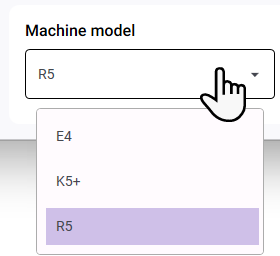
Possible to calculate jobs for multiple machine models without changing the program
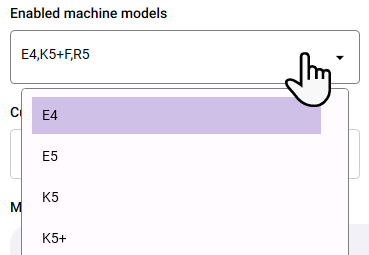
dentalcam now supports multiple machine models on 1 surface: You can activate all the machine models you use by entering their serial numbers or selecting them from a list in the settings.
When importing objects, you then select the machine model on which you want to manufacture the objects.
Your benefit
-
Allows you to switch between multiple machines with 1 dentalcam installation
New names for indications
The following indications have improved names:
|
Old |
New |
|---|---|
|
Screw-retained bridge |
Implant bridge with gingival part |
|
Telescope crown |
Primary telescope crown |
|
Secondary crown |
Secondary telescope crown |
|
Partial frame |
Clasp denture |
|
Denture |
Full denture |
|
Model plug-in tooth |
Model die |
|
Model Plate |
Model base |
Your benefit
-
Clear selection of indications.
Titanium/Cobalt chrome: All 4-axis machine models now use 35-mm tools
From now on,, dentalcam uses 35-mm tools on N4+ machines for titanium and cobalt chrome. The 32-mm tools are no longer needed.
This also applies to all 4-axis machines that dentalcam will support in the future and that are capable of processing base metals.
Your benefit
-
Reduce your tool stock: Use 35-mm tools for all vhf dental machines when working with base metals.
Titanium/Cobalt chrome: Tool M100–R2–35-C replaces M200–R4–xx-C
dentalcam now uses the M100–R2–35-C tool for finishing secondary crowns made of titanium and cobalt chrome. The M200-R4-xx-C tools (32/35 mm length) are no longer available.
Your benefit
-
Better and more consistent surface quality in cavities.
-
Activate the tool in the individual material settings with the option Using designated finishing tool for secondary crowns
More information
-
Tool overview: Non-precious metals (Cobalt chrome / Titanium)
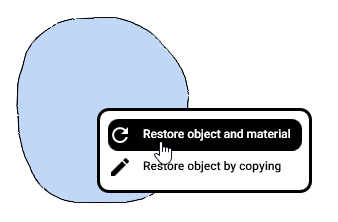
Calculated objects can now be restored directly in the nesting view
From now on, you can restore calculated objects in the nesting view and, if necessary, the material used. This replaces the process of restoring entire blanks via the blank history in dentalcam 8.
Your benefit
-
Restore specific objects and the corresponding materials.
More information
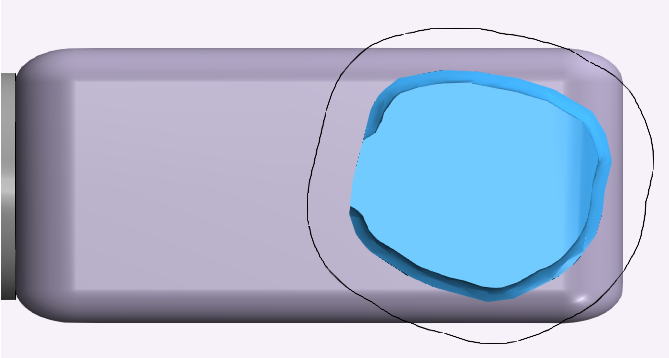
Live preview of calculation result
dentalcam now displays the progress as a graph during the calculation.
Your benefit
-
Check the result while the calculation is in progress.
More information
Optimized manufacturing of bar attachments
We have successfully reduced the amount of residual material in bar attachments by adjusting our strategy.
To take advantage of this, import the relevant objects with the following parameters:
-
Indication: Implant bridge with gingival part
-
Quality: Standard () or optimal ()
Your benefit
-
Less rework, but slightly longer manufacturing duration.


