Set up direct transfer from CAD applications and 3Shape Produce
From certain CAD applications, you can send your objects directly to dentalcam. The need to use export and import has been eliminated.
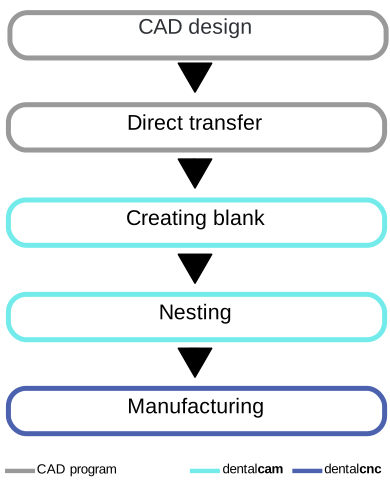
Supported CAD applications for direct transfer to dentalcam
The following CAD applications can send objects and, in some cases, even metadata directly to dentalcam:
-
TRIOS Design Studio (via the 3Shape Produce server)
-
Medit
-
Shining 3D
-
Circle One
-
Dental Twin
-
iTero
A configuration of dentalcam is only required for TRIOS Design Studio . For other CAD applications, please refer to the documentation of the respective manufacturer.
Set up TRIOS Design Studio and dentalcam for direct transfer
Prerequisites
-
The 3Shape Produce server was installed with dentalcam. If this is not the case, see Install the 3Shape Produce server later
-
The TRIOS Design Studio computer and the 3Shape Produce computer can communicate on the network.
-
Open the dentalcam settings with the following icon in thesystem menu:

-
Select the Program settings tab.
-
In the CAD Integrations section, activate the 3Shape Produce Activate server toggle switch.

-
Re-install the latest version of TRIOS Design Studio.
-
Open TRIOS Design Studio.
-
In the Produce section, select Machine setup.

-
The Machines configuration window opens.
-
In the Filters section, activate the All check box.
-
Scroll through the list to the entry vhf dentalcam9.
-
Select the Setup button.
-
If the connection is successful, the dot turns green.
-
Save the machine configuration with Close.

Send files directly from TRIOS Design Studio to dentalcam
Requirement You have set up 3Shape Produce in dentalcam and TRIOS Design Studio.
-
In the Produce section of TRIOS Design Studio, make sure of the following:
-
The destination is displayed as vhfdentalcam9.
-
The green dot indicates a successful connection to the dentalcam computer.

-
-
If vhfdentalcam9 is not displayed in the Produce section:
-
In the Produce section, select Change machine.
-
In the Machines section, select vhfdentalcam9.

-
-
Select the objects you want to export.
-
Select Send.

-
TRIOS Design Studio sends the objects, including metadata, to dentalcam , where they are displayed in the import list.

-
Continue with the workflow in dentalcam.
See Importing objects.
Install the 3Shape Produce server later
If you did not install the 3Shape Produce server when installing dentalcam, modify your dentalcam installation:
-
Download the dentalcam setup program
 A separate program called "Setup.exe" which installs the applications on your hard drive.: dentalcam-9-Download
- Select Next.
-
Select the following icon next to the Change label:
-
Expand the 3Shape ProduceServer entry.
-
Select the All packages will be installed on your own hard drive entry.
-
Select Next.


