Calculating jobs
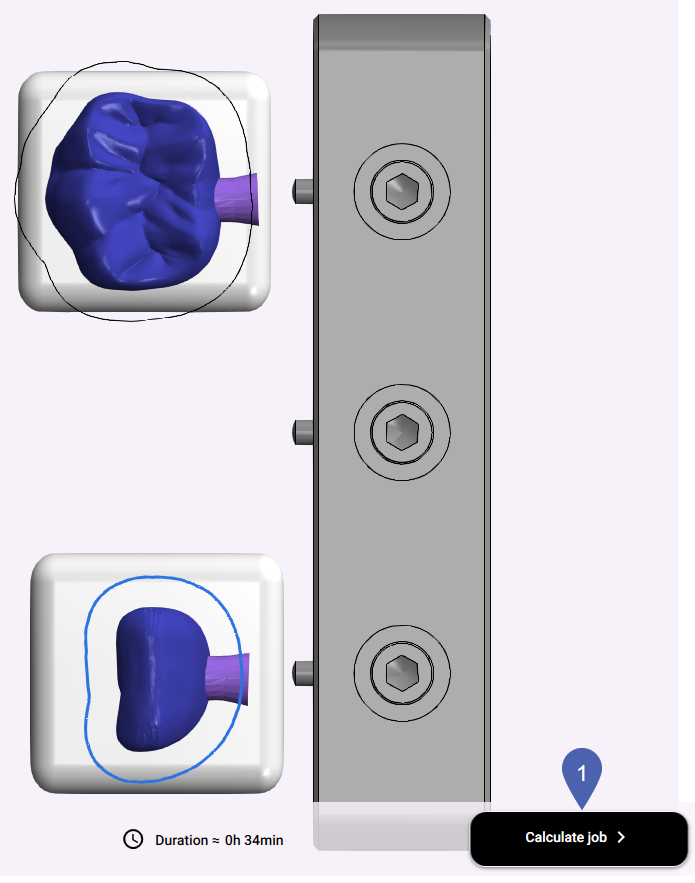
After your virtual blank has been fully nested, dentalcam must calculate a job or dentalcnc .
-
The calculation takes place in the background.
-
You can run multiple job calculations at the same time without having to start dentalcam manually multiple times.
-
Thanks to the directmill function, you can manufacture jobs even while dentalcam is still calculating them.
Prerequisites
-
You are editing a blank in the Nesting view using appropriate objects.
-
You have placed enough bars for all the objects.
-
All objects are located within the blank, and the tool spaces do not overlap too much.
-
Select the Calculate job button.
-
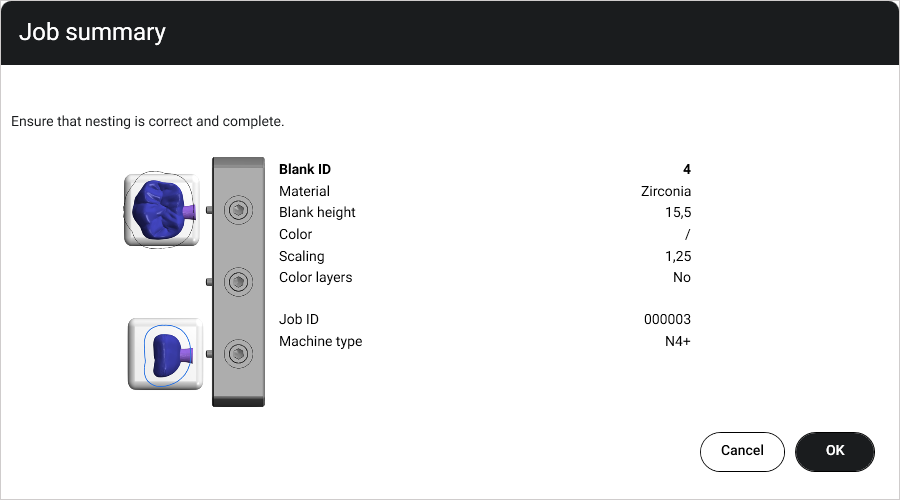
The Job summary window opens.
-
Check the data for accuracy.
-
Select OK.
-
The calculation starts in the background. You can view the progress in the Calculations in progress" view.
The Nesting view closes, and you return to step 1 of the workflow.
 Troubleshooting
|
Error |
Possible cause |
Recommendation |
|---|---|---|
|
Insufficient bars |
You have not set any bars for some objects. dentalcam requires at least 1 bar per object. Please note that 1 bar is not always sufficient. |
|
|
Objects extend beyond the edge of the blank. |
At least 1 object was (partly) positioned outside of the blank. |
|
|
The objects overlap too much. |
At least 2 objects in the blank overlap too much. |
|
|
The blank is empty. |
There are no objects in the blank. |
|
What's next?
If you want to manufacture the job:
If you want to check the calculated items in the residual material display:
Checking the manufacturing quality in the residual material display


