Import objects in the nesting view
In the nesting view, you can directly add objects to the blank.
-
Select the button for the Add objects editing function
-
The corresponding options appear in the editing options column.
-
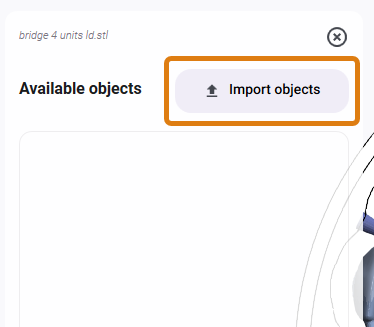
In the 2nd column, select the
 Import objects button
-
In the file browser, select the desired file or files.
-
dentalcam adds the selection to the 2nd column.
-
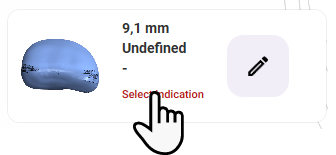
Select the indication:
-
Keep clicking on the Select indication text until the indication is correct.
-
Alternative: Select the
 icon and, in the new window, choose the appropriate entry from the Select indication drop-down list.
-
-
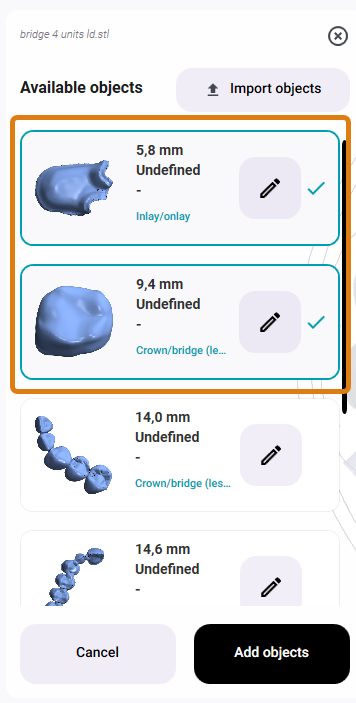
Select all the objects you want to import.
-
dentalcam marks the entries with a border and a check mark.
-
Select the Add objects button.
-
dentalcam adds the objects to the blank and pre-populates them with the Efficient quality level.
What's next?
If necessary, change the quality level:


