Restoring used materials and calculated items
After calculation of a blank, dentalcam displays empty areas at the original locations of the objects. You can virtually fill these holes again or create copies of the calculated objects for reuse in the same blank.
Requirement You are editing a blank with calculated objects in the Nesting view.
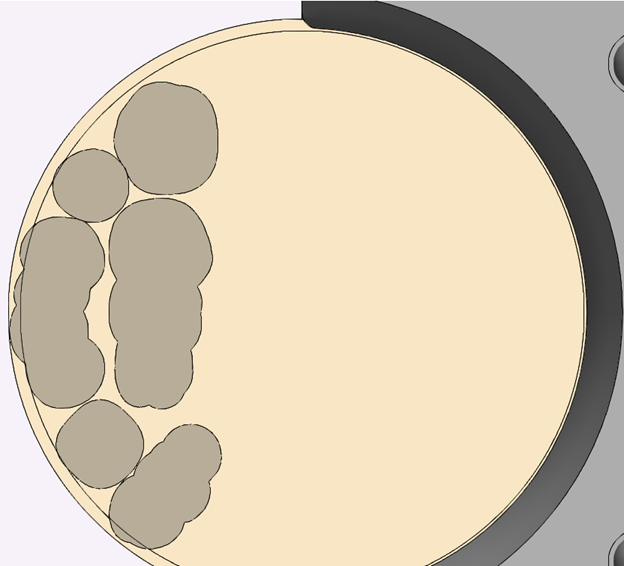
-
Activate the top view with
 .
. -
Right-click on the desired area.
-
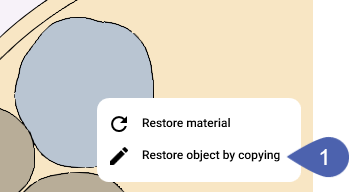
To restore the object via a copy, select Restore object from copy from the context menu.
-
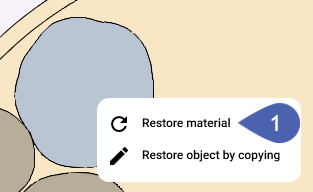
To restore the material, select Restore material from the context menu.