The dentalcam user interface

The dentalcam user interface gives you access to all functions and data in 1 window. The various program sections are displayed in subviews.
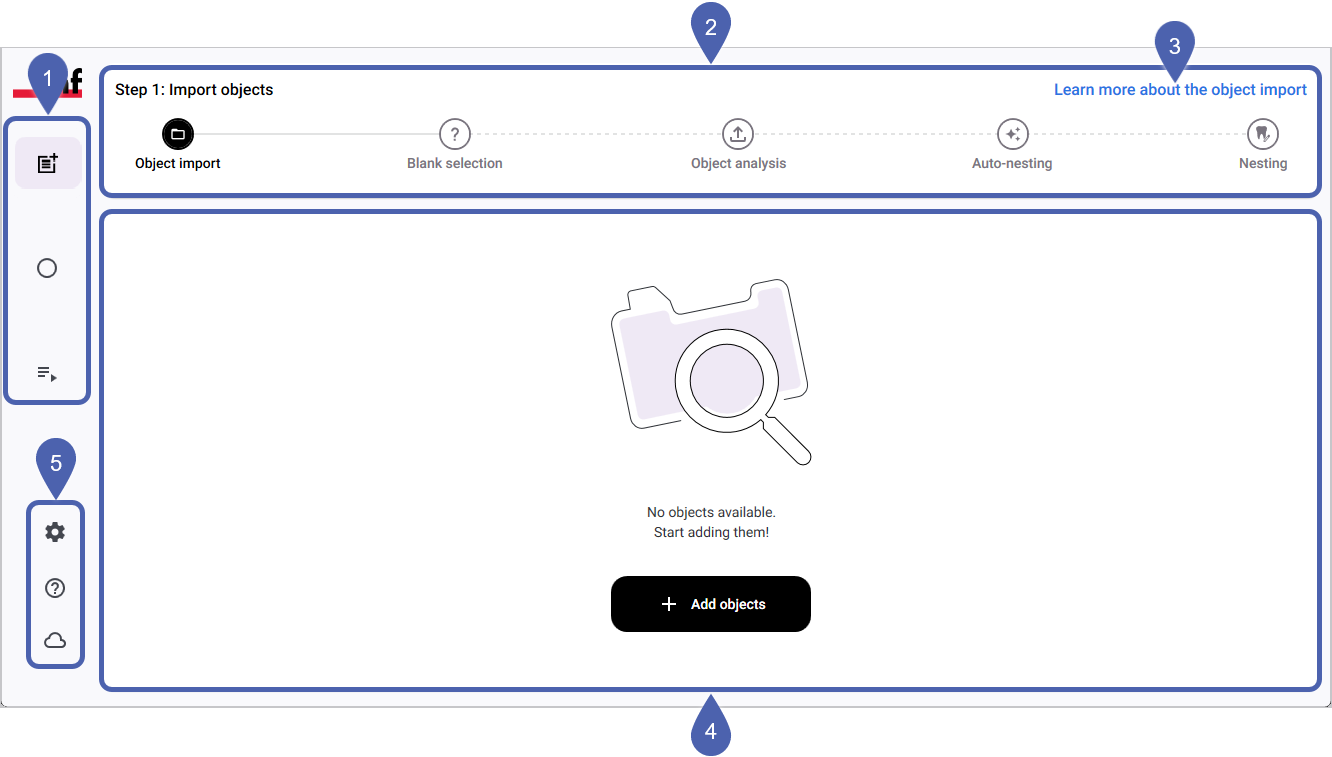
Main toolbar
The Main icon bar gives you access to the main functions of dentalcam.
|
Icon |
Designation |
|---|---|
|
|
Workflow mode This switches you to the mode for creating and editing virtual blanks. |
|
|
Blank archive Use the blank archive to load pre-created blanks or view the residual material display for calculated objects. You have either already calculated the blanks contained in the blank archive or saved them in the Nesting view without calculating them. |
|
|
Job queue Displays jobs for dentalcnc are currently being calculated or are still in the queue. A number next to the icon indicates the number of jobs currently being calculated. |
|
|
Object viewer Using the object viewer, you can view and visually inspect STL files before importing them. The object viewer also analyzes issues with the 3D mesh of objects, allowing you to identify non-manifold geometries, for example. |


Workflow bar
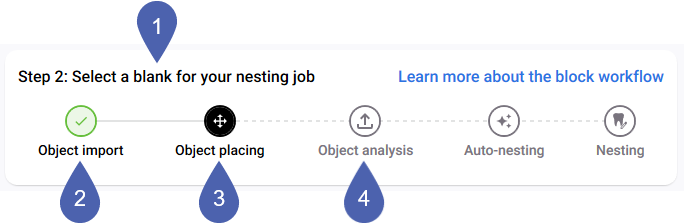
In workflow mode, dentalcam displays the workflow bar. The workflow bar displays the main workflow steps of dentalcam.
|
1 |
Number and information about the current step |
|
2 |
Step completed |
|
3 |
Current step |
|
4 |
Next step |
-
The workflow bar is primarily for informational purposes, not for navigation. You can only return to the Object import point by selecting it.
-
dentalcam automatically performs the object analysis and auto-nesting steps.
-
dentalcam adjusts the names in step 2 depending on whether you are creating blocks or discs.
Help links
The help links allow you to access context-sensitive help articles from this software documentation.
Workspace
The workspace displays the control elements for the currently selected view. This is where you perform your main tasks.
System menu
In the system menu, you can open the program settings and access various information.
|
Icon |
Designation |
|---|---|
|
|
Settings This gives you access to the program settings and material settings. |
|
|
Help Opens the table of contents for this software documentation. |
|
|
vhf cloud status Displays the most recent update for each dentalcam program component and the online status. 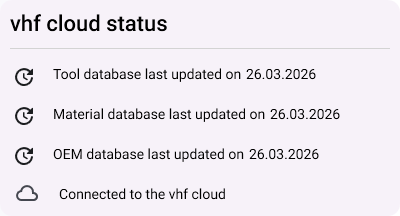
|


