Adding team members to a myvhf company profile
Workflow Setting up dentalcnc machines.
Your goal is for all users of dentalcnc to be members of the company profile under which the machine is signed in.
Prerequisites
-
myvhf is available in your country.
-
You are signed in myvhf as a Company administrator.
-
Each person has access to their work email inboxes.
-
Ask the individuals concerned whether they already have a vhfid.
Note the email addresses that persons used for your vhfid.
-
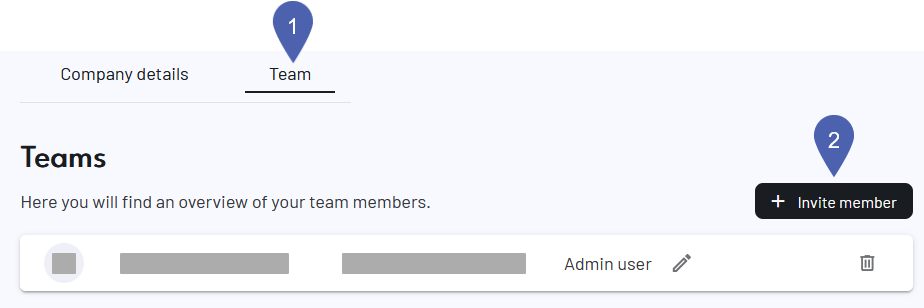
Open the member overview of your company profile:
-
Open the myvhf user menu via the user icon.
-
Select a name for your company profile.
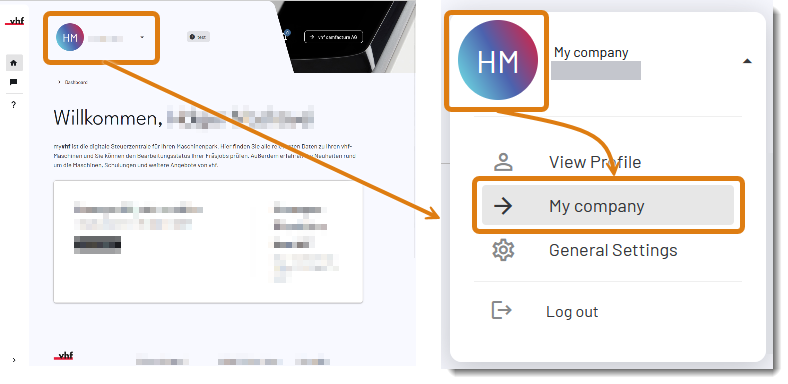
The company profile shown in the image is an example called "My company"
-
If it is not already open, select the Team tab.
-
Select Invite a member.
-
Fill out the form in the Invite members section.
Via Add another member, load more than 1 person at a time.
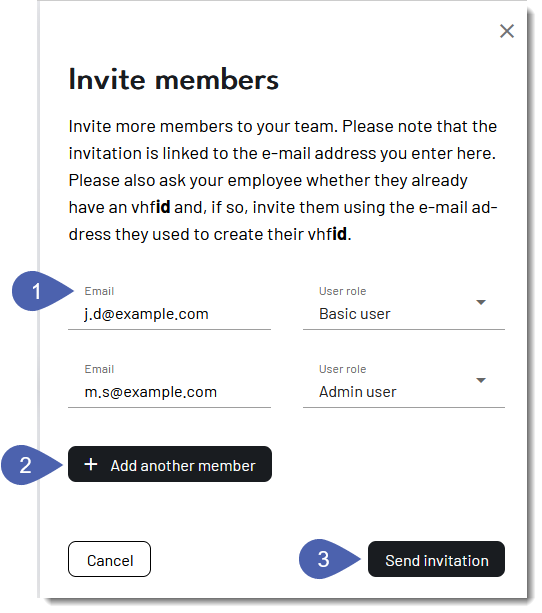
Notes on form fields
Email
-
If the person already has a vhfid, please provide the email address of the vhfid. Otherwise, the invitation will not be addressed to the desired vhfid.
-
If the person does not yet have a vhfid, please enter the email address to be used for the vhfid. Please let the person know that they must use the link in the email to create their vhfid. Otherwise, the vhfid will not become a team member. For more information on this error, see Despite the invitation, this person is not a member of the company profile.
User role
Select the member's user role:
-
Basic user:
-
Can work with dentalcnc.
-
Has read access to company statistics in myvhf.
-
-
Admin user:
-
All rights reserved for standard users.
-
Can sign in machines, edit the company profile, change access levels, and remove members.
-
Your company profile can have multiple administrators.
-
-
-
Select Send invitation.
-
Recipients will receive an email containing a confirmation link. Clicking the link will automatically add them to the company profile.
 Troubleshooting
|
Error |
Possible cause |
Recommendation |
|---|---|---|
|
In myvhf, I receive a message that the email address of someone I invited is not available. |
This person is already a member of another company profile. |
|
|
Despite the invitation, this person is not a member of the company profile. |
The person did not click the link in the email. |
|


