Adding machines to dentalcnc
Workflow Setting up dentalcnc machines.
dentalcnc communicates only with machines that you have added to the machine list in the sidebar.
-
You can add up to 6 machines to the machine list.
-
If you want to control additional machines, you have the following options:
-
Change the machines in the machine list as needed.
-
Install dentalcnc on another computer and add additional machines there.
-
Prerequisites
-
Your company profile is listed in myvhf.
If you have not created a company profile yet, follow the instructions Creating a myvhf company profile
-
When setting up a machine for the first time: According to the operating instructions, the machine is ready to be connected to dentalcnc.
-
Switch on the machine at the main power switch.
-
In dentalcnc, select one of the following icons in the left sidebar:
 or
or 
-
If dentalcnc asks whether it should close the CNC interface, select Try to close the CNC interface proxy. The program prevents communication between dentalcnc 9 and the machine.
 If the attempt fails, close CNC interface the proxy manually:
-
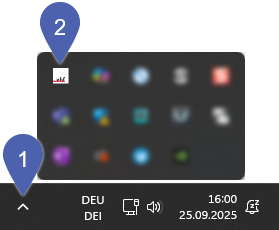
Right-click the CNC interface proxy icon in the info area of the taskbar.

If the icon is not displayed there, open the grouped icons with the up arrow and right-click the CNC interface proxy icon.
-
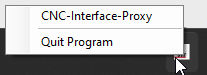
From the context menu, select the Quit program entry (end program).
-
-
In the Add new machines: Drag the desired machines from the right section to the left area.
If there are multiple entries, use the serial number below the machine name for identification.

-
Recommendation: Enter a short name in the Name input field. This makes it easier for you to identify individual machines in myvhf and dentalcnc.
Example: R5 on the right
-
Confirm with Save.
-
dentalcnc displays the machine in the left sidebar.

Vimeo video – When viewing this video, personal data is sent to Vimeo Inc., USA. Privacy statement
-
If dentalcnc notifies you that a new machine software package is available, install it:
-
In the message window, select Update now.
-
Complete the update with OK or Click here to restart the machine.
-
Recommendation: If you no longer need the CNC interface Proxy to connect to other computers, uninstall the program.
Troubleshooting
|
Error |
Possible cause |
Recommendation |
|---|---|---|
|
The machine will not be displayed in the Add new machines window. |
dentalcnc cannot find your machine on the network. |
|
|
dentalcnc displays a warning message about the CNC interface proxy. |
|
The CNC interface proxy is interfering with the connection and is not needed.
|


