How to manufacture jobs
Via the Manufacturing view, you can control both single-piece production and multi-piece production with a blank changer Machine component which stores multiple blanks in a magazine and which can automatically load them into the working chamber.. When using the search, use a blank changer or a blank magazine instead.
Prerequisites
-
You have selected the desired machine from the machine list.
-
You started the calculation in dentalcam or exported the job from your third-party CAM program.
If you want to manufacture jobs for a machine that is not currently connected to dentalcnc, use the All Jobs view.
-
Open the Manufacturing view with the following icon in the Main icon bar:

-
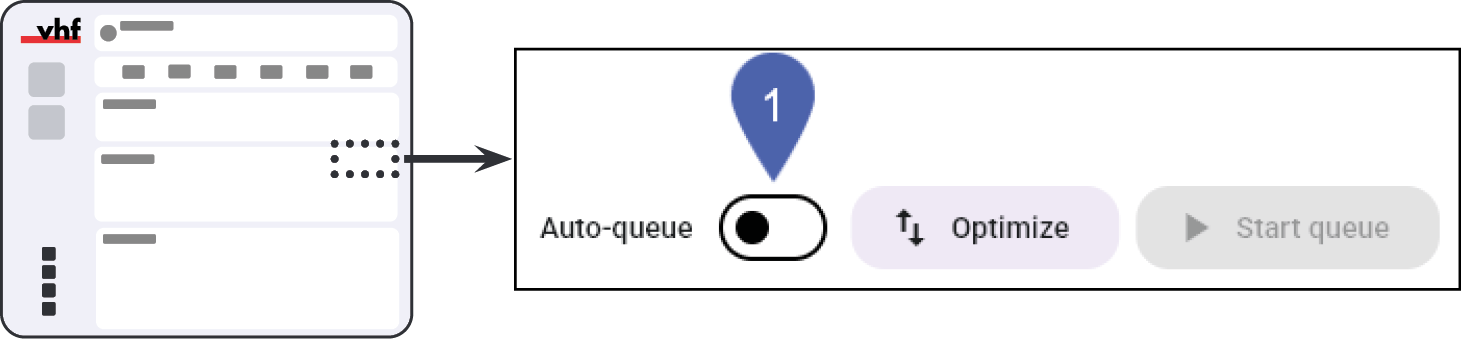
If you want dentalcnc to move all jobs to be directly into the queue, activate Auto-queue.
You can activate this option for only 1 machine of a given machine model to ensure that the assignment is unique.
-
From now on, dentalcnc will put all jobs for the current machine in the queue.
-
To assign manually:
-
Under Available Jobs, select the job you want.
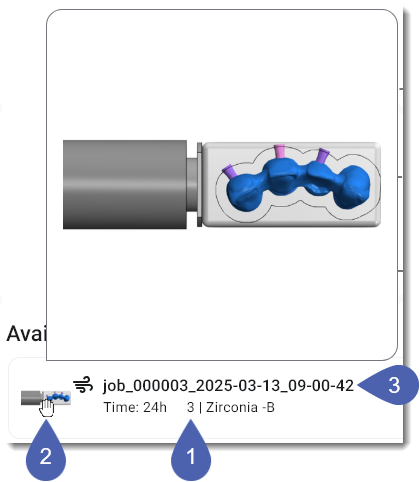
1
Job ID
2
Preview image with a mouse-over function for zooming in
3
File name
-
Drag the job into the Queue section.
-
-
dentalcnc assigns the job to the machine.
The program may display a line with the label Queue stops here.
Meaning: Only jobs above the line are configured correctly and will be manufactured.
-
For combined manufacturing, add another job with the same ID to the queue.
You can also do this after the job has started.
-
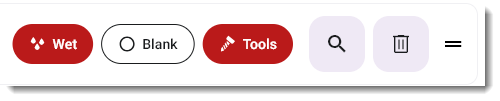
For the jobs in the queue, check the elements on the right side of each row.
Red elements display errors that prevent manufacturing.
-
If an element is red, correct the error.
Element
Function
Action to take if red
Wet
Display for wet job
E4: Insert the liquid tank
S5/S5m: Attach the ionizer cover
Dry
Display for dry job
E4: Insert the dry tank
S5/S5m: Remove the ionizer cover
Tools
Function: Assign tools to the job
Select an element to assign tools

Function: Assign a job to a blank magazine
Part of the blank changer in which you store the blanks for automatic loading. slotSelect an element to assign blank magazine
Part of the blank changer in which you store the blanks for automatic loading. slots -
For multi-production, select the
 element and assign the blank magazine Part of the blank changer in which you store the blanks for automatic loading. slots. For instructions, see Assigning jobs to the blank magazine for multi-manufacturing.
 -
Start manufacturing:
Single manufacturing Drag the job from the queue to the Job in progress section.
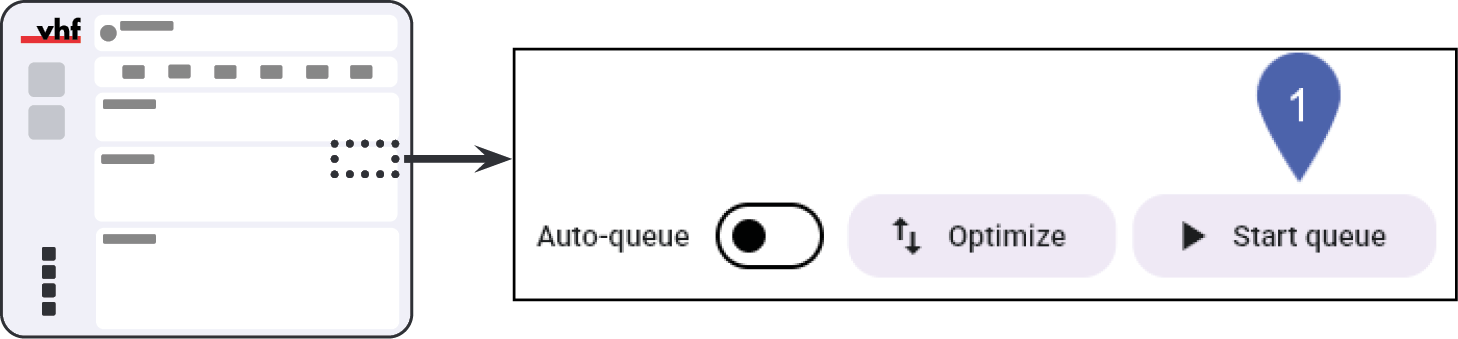
Multi-manufacturing and combined manufacturing Select the Start queue button.
-
dentalcnc displays the manufacturing progress in the Job in progress section.
Troubleshooting
|
Error |
Possible cause |
Recommendation |
|---|---|---|
|
No dentalcam jobs are displayed. |
The dentalcam exchange folder is incorrect. |
|
|
A specific job is not displayed. |
The job was not calculated. |
|
|
The job was calculated for a different machine. |
|
|
|
||
|
Error message: No valid CAM-9 license or CNC-9 license available. |
The program mentioned is not licensed for the selected machine. |
|
What's next?
You may need to perform certain tasks during manufacturing:


