Assigning jobs to the blank magazine for multi-manufacturing
For machines equipped with a blank changer Machine component which stores multiple blanks in a magazine and which can automatically load them into the working chamber.. When using the search, use a blank changer or a blank magazine instead, you assign jobs to the blank magazine Part of the blank changer in which you store the blanks for automatic loading. slots.
Security
NOTICE! Damage to the machine and blanks caused by incorrect loading of the blank magazine Part of the blank changer in which you store the blanks for automatic loading. and working chamber
If the configuration of the blank magazine Part of the blank changer in which you store the blanks for automatic loading. or the working chamber in dentalcnc does not match the physical layout of the machine, collisions may occur during the loading and unloading of blanks, resulting in damage to the machine and the blanks.
-
Always keep the mounts in the blank magazine
Part of the blank changer in which you store the blanks for automatic loading. and the working chamber that are unoccupied in dentalcnc free of physical objects. -
Always make sure that the load of the blank magazine
Part of the blank changer in which you store the blanks for automatic loading. and the working chamber in dentalcnc and the machine match.
Procedure
Prerequisites
-
You have selected the desired machine from the machine list.
-
You have added the desired jobs to the queue. For instructions, see How to manufacture jobs.
On machines with automatically operated doors and flaps, dentalcnc opens and closes these in accordance with the respective step in the process. To keep the instructions concise, these automatic processes are not mentioned separately in the instructions.
-
Select the
 button for the blank you want to assign.
If the job has already been assigned to a blank magazine
Part of the blank changer in which you store the blanks for automatic loading. slot, the slot number is displayed instead of the ?.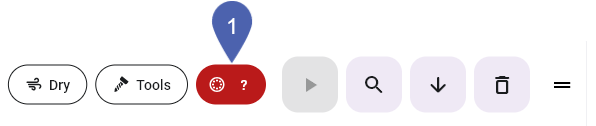
Alternative: Open the Blank magazine
Part of the blank changer in which you store the blanks for automatic loading. view with the following icon in the Main icon bar: 
-
dentalcnc displays the Blank magazine
Part of the blank changer in which you store the blanks for automatic loading. view.In the illustration of the blank magazine
Part of the blank changer in which you store the blanks for automatic loading., the change position is always at the marked lower position.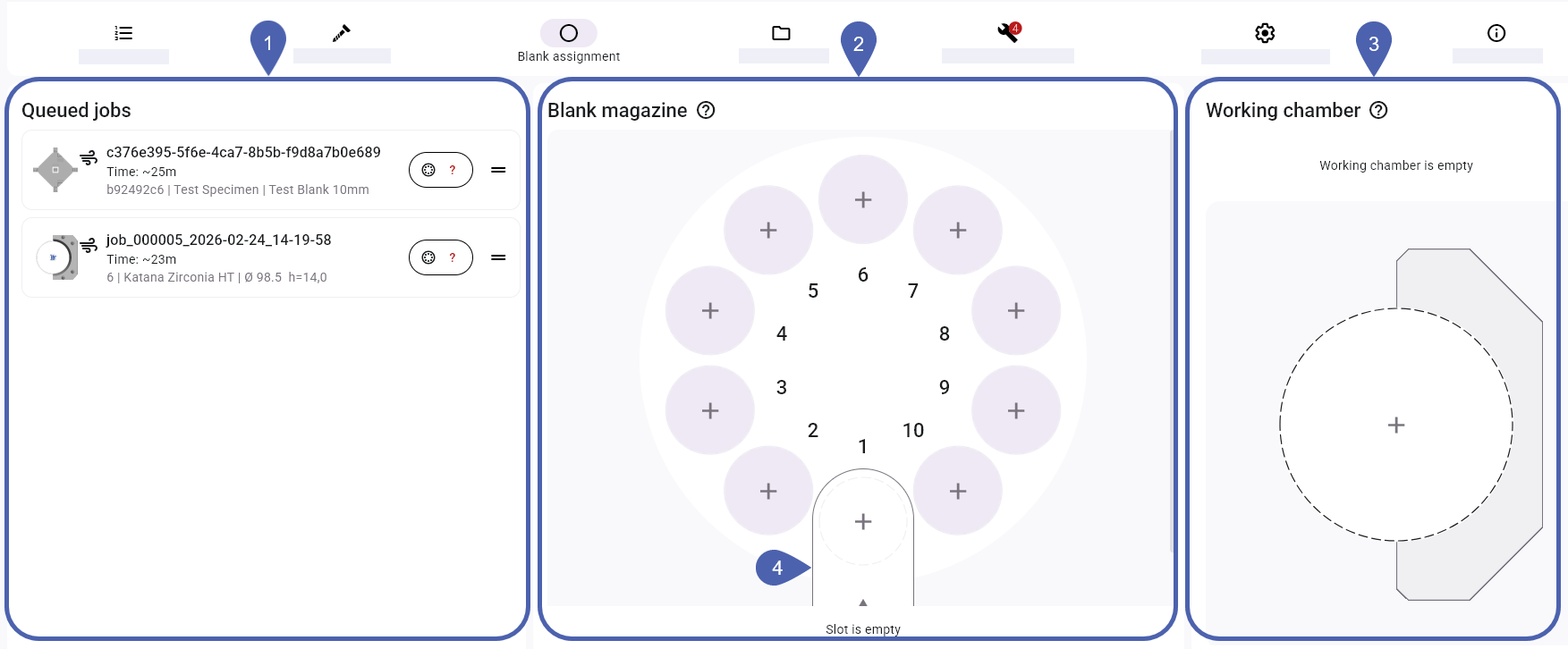
1
Jobs in the queue
2
Blank magazine
Part of the blank changer in which you store the blanks for automatic loading. load3
Working chamber load
4
Change position
-
To assign a job to the blank magazine
Part of the blank changer in which you store the blanks for automatic loading.:-
Drag the job from the Jobs in queue section to the desired blank magazine
Part of the blank changer in which you store the blanks for automatic loading. slot.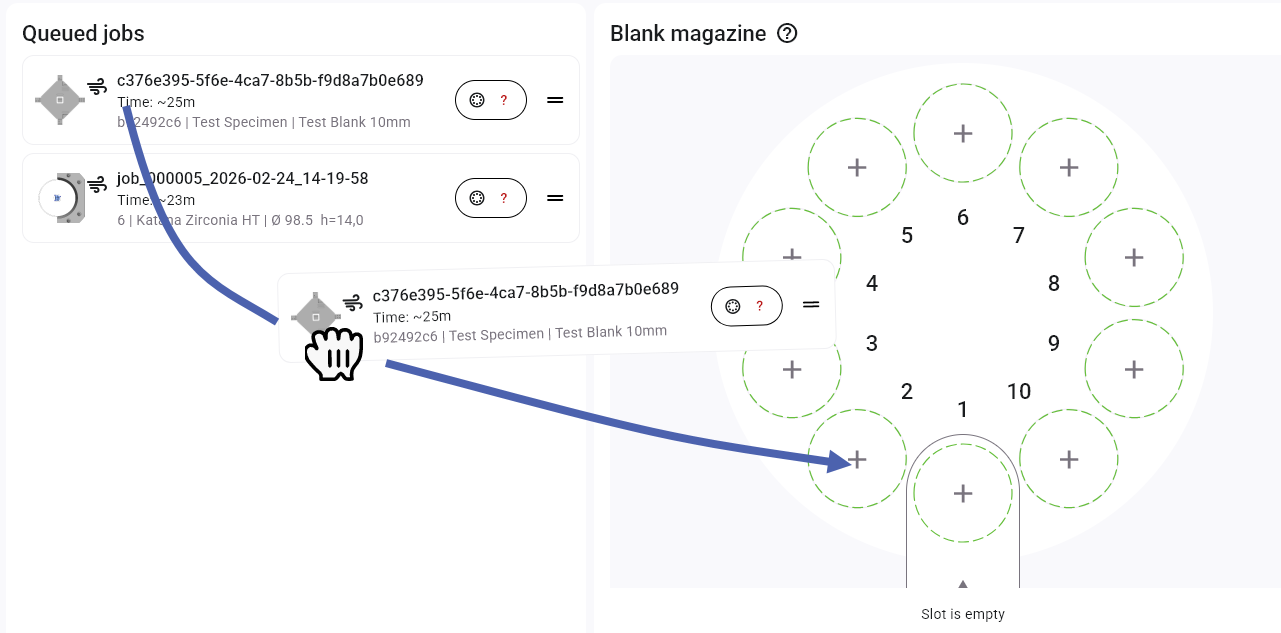
Example: Assign the job to blank magazine
Part of the blank changer in which you store the blanks for automatic loading. slot 2 -
The machine rotates the selected blank magazine
Part of the blank changer in which you store the blanks for automatic loading. slot into the change position. dentalcnc adjusts the display of the blank magazine Part of the blank changer in which you store the blanks for automatic loading. accordingly.
Example: blank in magazine position 2 is at the change position
-
Clamp the physical blank in the change position. Do not use any other blank magazine
Part of the blank changer in which you store the blanks for automatic loading. slot. -
Repeat the last two steps until all jobs have been assigned.
-
-
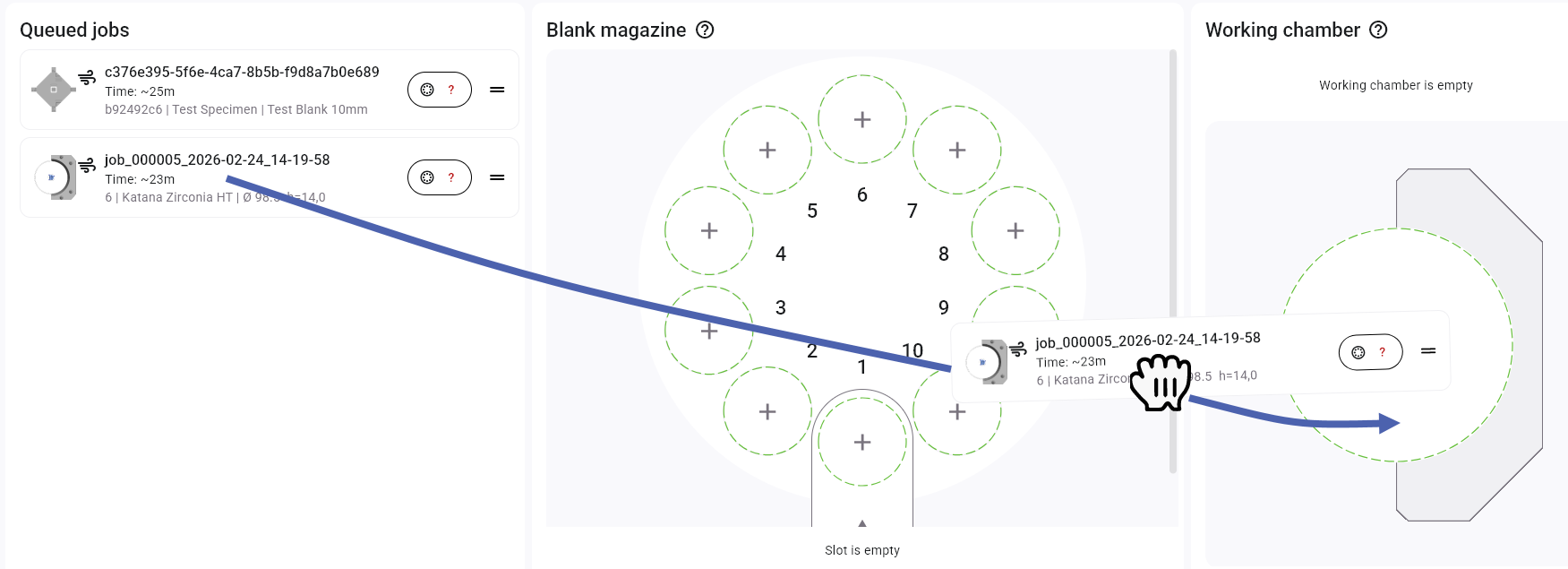
If you want to execute a job directly from the working chamber:
-
Drag the job from the Jobs in queue section to the Working chambersection.
Currently intended only for: R5
-
Mount the physical blank in the working chamber.
-
-
If you want to make changes to the loading of the blank magazine
Part of the blank changer in which you store the blanks for automatic loading. or working chamber, see Blank magazine control. -
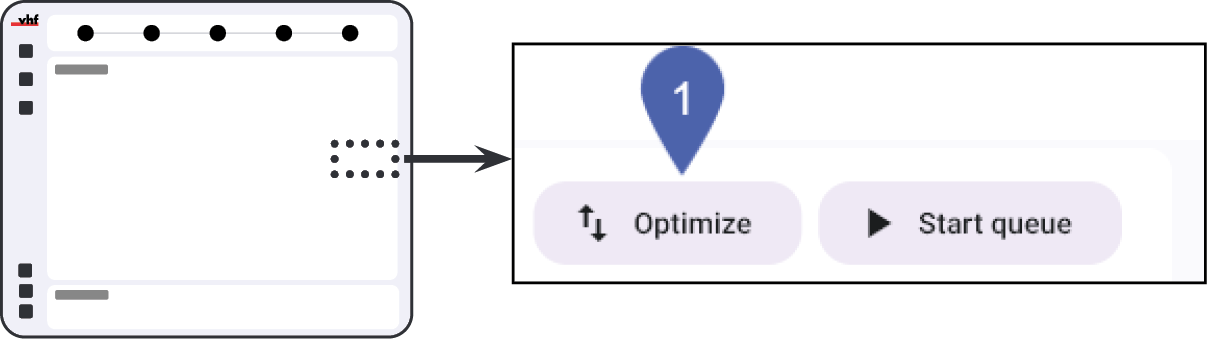
Recommendation: Select the Optimize button.
dentalcnc then arranges the jobs to ensure process-reliable and fast manufacturing.
-
Open the Manufacturing view with the following icon in the Main icon bar:

-
Select the Start queue button.
What's next?
You may need to perform certain tasks during manufacturing:


