The dentalcnc user interface

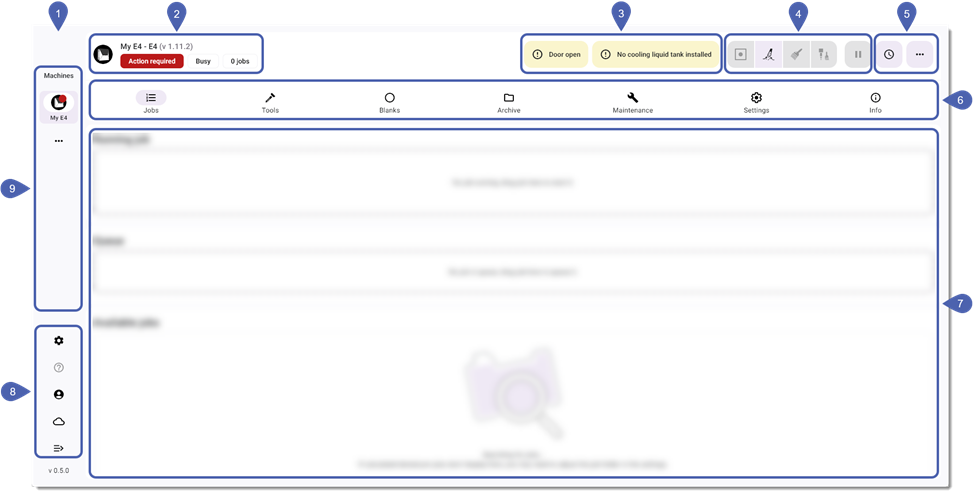
The dentalcnc user interface gives you access to all functions and data in 1 window.
-
The various program sections are displayed in subviews.
-
The elements displayed depend on both the subview and the currently selected machine.
|
1 |
|
|
2 |
|
|
3 |
|
|
4 |
|
|
5 |
|
|
6 |
|
|
7 |
|
|
8 |
|
|
9 |
Sidebar
The sidebar can be expanded via the following icon:
Machine status
Displays the current status of the machine.

|
Designation |
Explanation |
|---|---|
|
Action required |
The machine is not ready for operation. You must correct the error before starting or resuming the job. |
|
Assigned |
The machine is currently performing an operation and is not accepting any further commands. |
|
Error |
Manufacturing was stopped due to a temporary error. |
|
Reference drive incomplete |
During the reference drive of the machine, the axes did not reach all target positions. |
|
Machine malfunction |
A machine malfunction is detected by the control unit when a critical event occurs. dentalcnc cannot continue the job without a machine restart. |
Machine notifications
Machine notifications inform you of the reasons why the machine is not ready for operation.

Examples of machine notifications:
-
Door open
-
No liquid tank installed
Icons for machine control
Use these icons to control your machine directly. The icons displayed depend on the features of the specific machine.
|
Icon |
Designation |
|---|---|
|
|
Move to default position When the axes are in the default position, you can carry out standard tasks such as:
|
|
|
Move to cleaning position The cleaning position enables you to clean your machine more easily. |
|
|
Switch the suction unit on/off Requires that the machine controls the suction unit. The operating instructions for your machine include installation instructions. |
|
|
Move to tool change position Required for the following activities:
|
|
|
Open/close the blank holder Only for machines equipped with the appropriate automatic system. Recommendation: On machines equipped with a blank changer |
|
|
Open/close the working chamber door Only for machines equipped with the appropriate automatic system. |
|
|
Open/close the drawer or bottom flap Only for machines equipped with the appropriate automatic system. |
|
|
Pause manufacturing Pauses the currently running job. |


 (Disc mount)
 (Block holder)

Quick Servicing Menu
The Quick Servicing Menu is relevant for customer service.
|
Icon |
Designation |
|---|---|
|
|
Open the Quick Servicing Menu Opens the corresponding toolbar |
|
|
Close the Quick Servicing Menu Closes the corresponding toolbar |
Main icon bar
You can access all views with machine functions via the Main icon bar.

|
Icon |
Designation |
|---|---|
|
|
Manufacturing In the Manufacturing view, you assign jobs to machines and start manufacturing. |
|
|
Tool assignment In the Tool assignment view, you map your tool stock and the positions of the tools in the tool magazine so that the machine uses the correct tools. |
|
|
Blank magazine For machines equipped with a blank changer |
|
|
Job archive In the job archive, dentalcnc lists both successfully completed and aborted jobs. |
|
|
Service Assistant The Service Assistant provides you with a real-time overview of upcoming maintenance tasks, links to online instructions, and the ability to trigger related machine functions directly. |
|
|
Machine management In the Machine management section, you can configure machine settings, start maintenance functions, and read sensor values. |
|
|
Machine data The Machine data view provides information on spindle runtimes, software licenses, and more. |


Workspace
The workspace displays the control elements for the currently selected view. This is where you perform your main tasks.
System menu
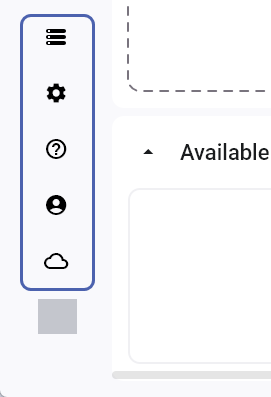
Use the system menu to open the program settings and user functions.
|
Icon |
Designation |
|---|---|
|
|
All jobs Displays a view of all jobs across all machines. |
|
|
Application settings In the application settings, you can customize the program to suit your work environment and needs. |
|
|
Help Use this to open the online help. |
|
|
User menu The user menu contains information and features related to the signed-in user. |
|
|
Cloud status This retrieves the connection status to the vhf cloud. |


Machine list
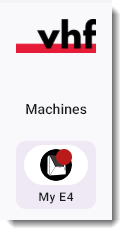
In the machine list, select the machine you want to control or assign jobs to.
A red dot on the machine icon displays that the machine is not ready for use. You must correct the error before starting or resuming the job.
What's next?
Get an overview of job manufacturing:


