Adding manufacturing tools

Before manufacturing, you must enter your inventory of tools and their position in the machine's tool magazine. This is essential for monitoring the tool life and ensuring the proper use of tools during manufacturing.
Configure the tool stock for the dentalcnc installation and the tool magazine positions for each machine.
Prerequisites
-
You have selected the desired machine from the machine list.
-
Recommendation: There is at least 1 manufacturing job for the machine. This makes it easier to choose the required tools.
-
Open tool management with the following icon in the Main icon bar:

-
The Tool management view opens.
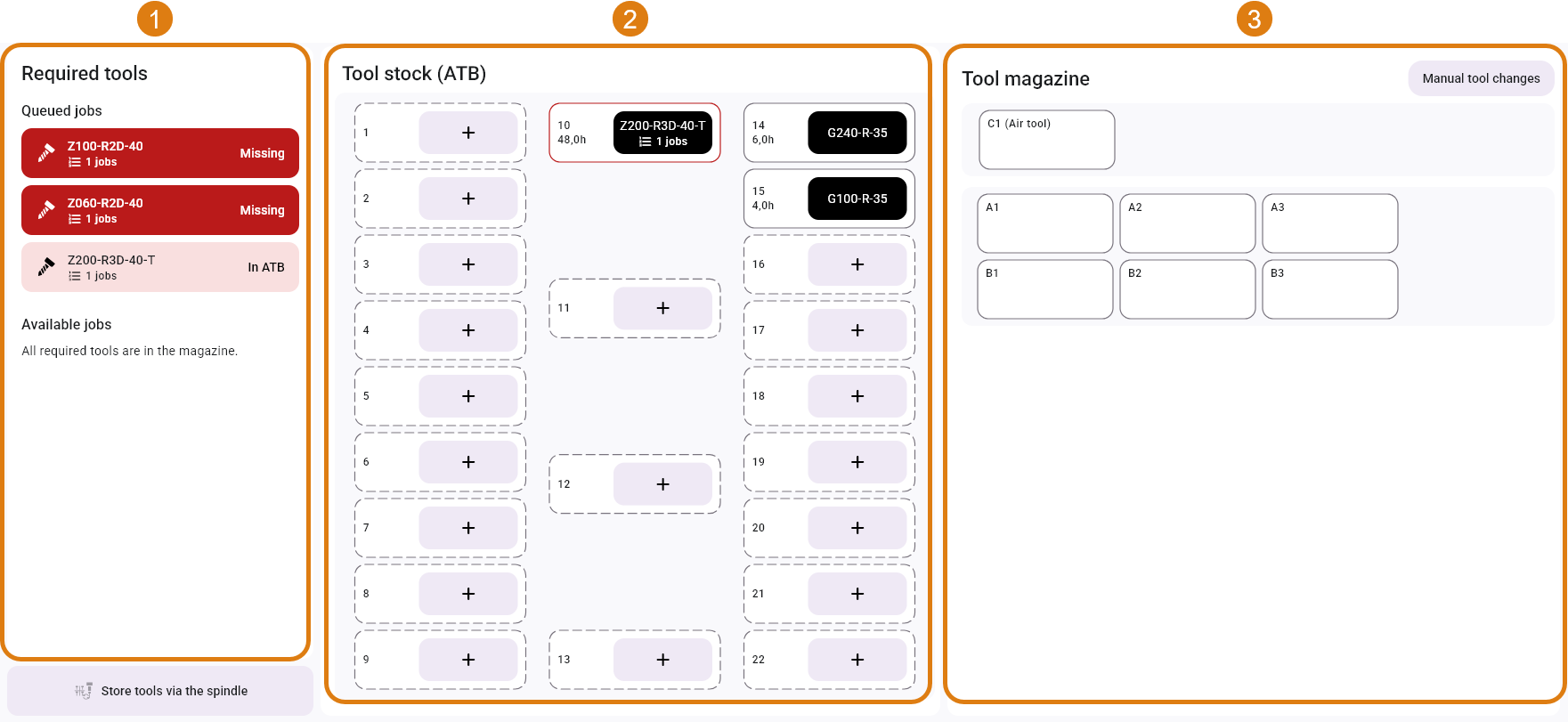
1
The Required tools section displays the tools needed for jobs in the queue and for all available jobs.
2
The Tool stock (ATB) section displays the virtual tools that have already been stored in the virtual ATB. Tools required for current jobs are highlighted with a red frame.
3
The Tool magazine section contains all the virtual tools that are located in the machine's tool magazine. The arrangement of the tool positions corresponds to the arrangement in the machine.
-
Add virtual tools to the tool stock.
- Any tools
- Tools for existing jobs
-
If you are using a physical ATB, insert the physical tool there.
-
In the same position in the Tool stock (ATB) section, select the icon.
-
The Add tool to the ATB window opens.
-
(Optional) Use the filter options to reduce the size of the list.
-
Double-click the desired match code.
-
To reassign an item, drag the tool to another empty position.
-
Drag the virtual tool from the Required tools section to an empty positions in the virtual ATB.
-
To reassign an item, drag the tool to another empty position.
-
If you are using a physical ATB, insert the physical tool there.
-
Repeat the last 2 steps for all tools listed in the Tools required section.
-
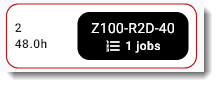
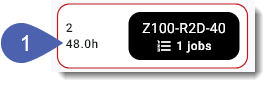
Check the tools life information for tools used in the tool stock.
dentalcnc shows the tool life as a decimal number.
Example: 10.5 hours is equal to 10 hours and 30 minutes.
-
If the tool life is insufficient, or to prevent tool breakage, add a backup tool of the same type to your tool stock.
If you are using a physical tool, place it in the same position in the physical ATB.
Example:
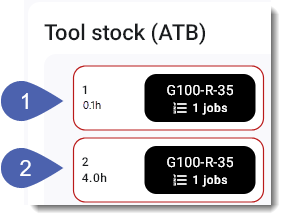
1
Tool with insufficient tool life
2
Backup tool of the same type with sufficient tool life
-
Insert tools into the tool magazine:
-
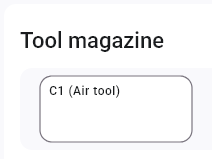
Drag a tool from the Tool stock (ATB) section to a position in the Tool magazine section.
You may only use AirTools in the designated positions.
-
Immediately insert the appropriate physical tool into the machine's tool magazine.
Equipping physical and virtual tools in direct succession prevents mistakes.
-
-
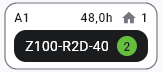
The numbers in the green circle display how many jobs in the queue require the tool.
Use this information to estimate the remaining tool life and, if necessary, add backup tools from the tool stock.
-
Repeat the last 2 steps for all the tools you need, including backup tools.
-
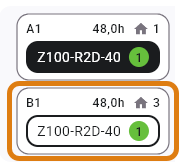
dentalcnc marks backup tools with an unfilled frame around the match code.
or
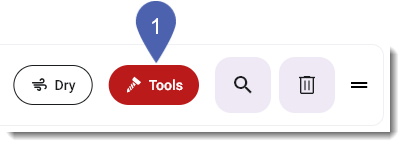
In the Manufacturing view, select the Tools button for a job.
Removing tools
If you remove tools, the saved tool life data will also be deleted.
You cannot undo this action.
-
Drag the virtual tool onto the Remove button.
The button is displayed below the Tool magazine section only while the operation is in progress.
Resetting the tool life values
When exchanging a physical tool, you should reset the tool life of the corresponding virtual tool. Otherwise, dentalcnc may switch to a configured backup tool unnecessarily early.
You cannot undo this action.
-
Drag the virtual tool onto the Reset tool life button.
The button is displayed below the Tool magazine section only while the operation is in progress.
What's next?
If you want to manufacture one or more jobs:


