Insert and remove connectors
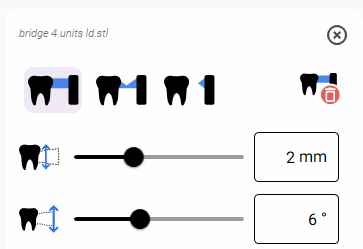
Use the Connector editing function to add or remove connectors. You determine the connector type, position, height, and diameter of the node and the opening angle.
You can also remove connectors outside of the editing mode by right-clicking on them.
Prerequisites
-
You are editing a blank with objects in the Nesting view.
-
You no longer need the following editing functions for this object:
-
Position/alignment
-
Sinter bar
-
Anterior tooth manufacturing
-
-
Activate the top view with
 .
-
Select the desired object in the blank display.
-
Open the
 Connector editing function.
-
dentalcam displays the control elements for the editing function in the 2nd column.
-
To remove a connector, right-click on the node.
-
To insert a connector:
- (missing or bad snippet)
(Optional) Adjust the following connector parameters:
Select the location for the connector and hold down the mouse button.
The connector automatically snaps to the outer surface of the object. dentalcam displays the connector in the preview area.

1
Preview area
2
Newly inserted connector in the blank display
Move the connector.
Axis
With the mouse
With a touch gesture
X and Y (horizontal)
Hold down the mouse button and drag the connector around the object.

Place a finger on the connector and drag it around the object.

Z (vertical)
Hold down the mouse button and scroll the mouse wheel.
Alternative: In the preview area, click on the connector, hold down the mouse button, and drag the connector up or down.

Place a finger on the connector in the preview area and drag the connector up or down.

-
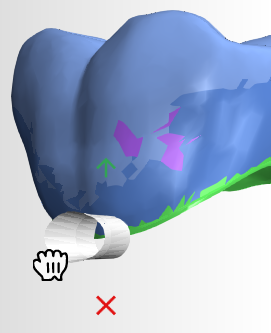
If you cannot move the connector any further in one direction, dentalcam will display a red cross at the corresponding location.
-
To move a connector after it has been placed:
-
Select and hold the node.
-
Use your mouse or a touch gesture to move the connector to the new location.
-
-
Continue adding connectors until you have enough connectors for the object.
-
Close the editing function by re-selecting
Connector.


What's next?
If you want to calculate the job:
If you want to save the job without a calculation:


