Set and delete sinter drops
If you need sinter drops on which to position an object in the sintering oven, add them using the Set drops editing function.
For clarity's sake, the figures in this help article do not show any connectors.
You are editing a blank in the Nesting view using appropriate objects.
-
Activate the top view with
 .
-
Select the desired object in the blank display.
-
Open the
 Sinter drops edit function.
-
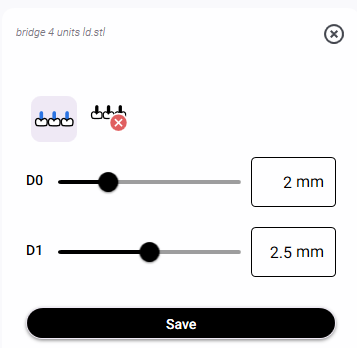
dentalcam displays the control elements for the editing function in the 2nd column.
-
To delete sinter drops, right-click on them.
Alternative:
-
Select the
 icon or right-click on the blank display.
-
Select the sinter drops you want to delete.
-
Select the
 icon or right-click on the blank display.
-
-
Set the following values using the corresponding slider or input field:
-
D0 Endpoint diameter
-
D1 Node diameter
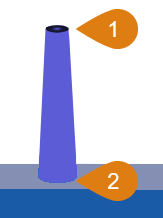
1
Endpoint
2
Node
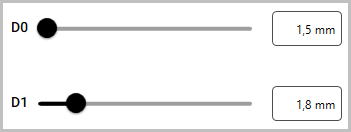
Recommendation: Select D1 greater than D0. This creates a conical sinter drop, which the machine can manufacture more easily.
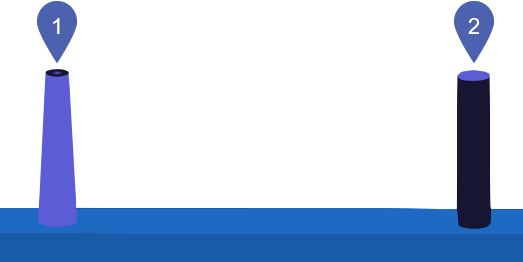
1
Conical sinter drop
2
Cylindrical sinter drop
-
-
In the blank display, select the desired position for the sinter drop.
-
Place sinter drops on objects or sinter bars.
-
Sinter drops outside of objects and sinter bars will be deleted when you save.
-
-
dentalcam places the sinter drop at the selected position. The sinter drop is represented by a blue or black dot.
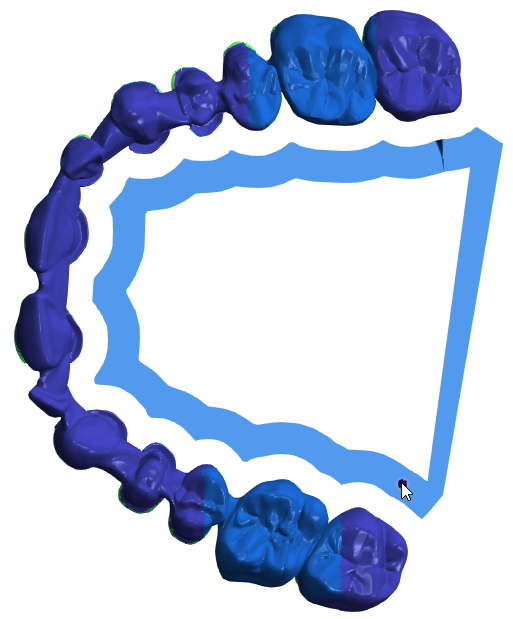
Sinter drop on a sinter bar in the top view
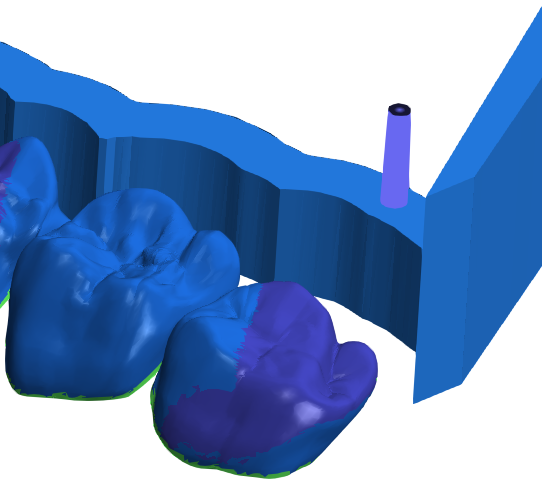
Sinter drop in the side view
-
Place as many sinter drops as needed until your object can stand steadily on them.
-
Avoid placing sinter drops on fissures.
-
If possible, place the sinter drops on elements that will be veneered, such as bridge abutments.
-
Recommendation: Place sinter drops not only on the object itself, but also on any sinter bars that may be present. This significantly improves process reliability.
Example:
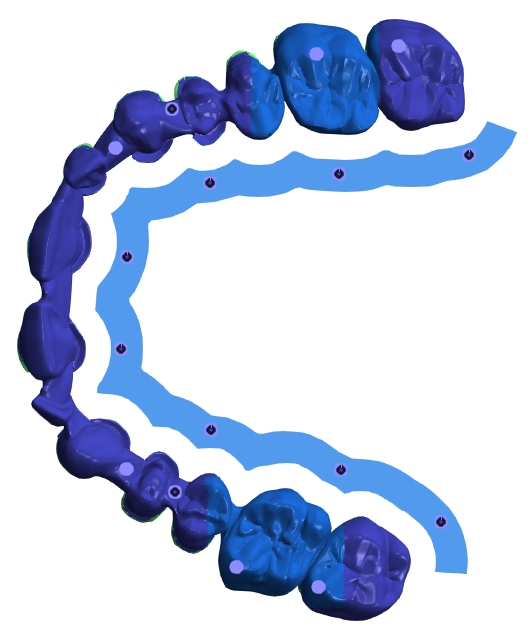
Place sinter drop on a sinter bar in the top view
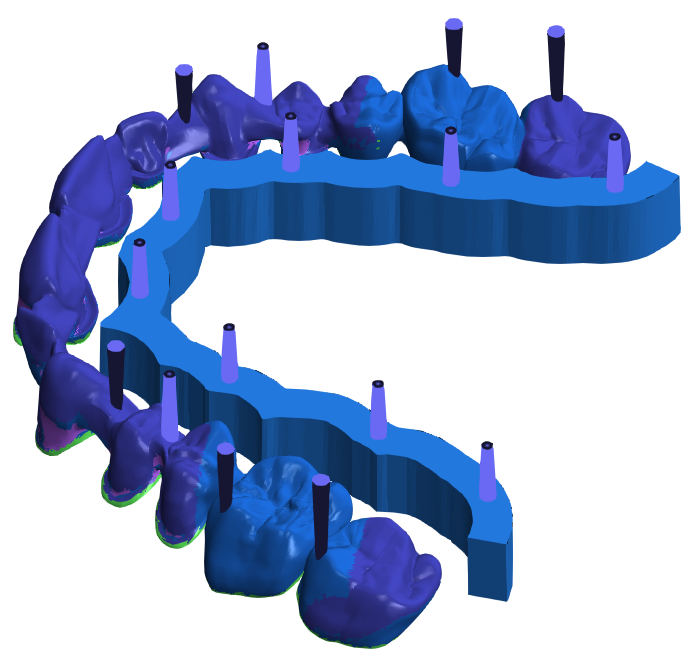
Sinter drops in the side view
-
-
Save all changes with
.Do not use
 .
-
dentalcam closes the editing function.